


 Go to console
 Change theme


 Edit Account
 Logout
OTA update control
Through features of Device OS and the Particle console you can control when your device gets over-the-air (OTA) firmware updates with fleets of devices.
Background
Kinds of OTA
There are two kinds of product firmware releases:
- Standard updates are only applied when the device handshakes with the cloud. The most common scenario where this occurs is after a reboot or reconnecting after sleep or powerdown.
- Intelligent updates allow immediate updates for online devices. The device has additional control over when this will occur.
You can choose which kind of release you want when releasing a firmware version in the console:
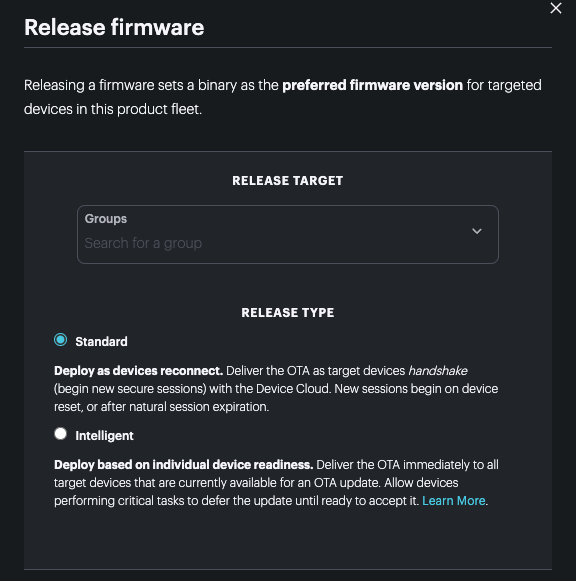
OTA control
When doing an Intelligent update the device may want to fine-tune when the update occurs. For example, if you are implementing firmware to control a motorized scooter, you probably do not want the Particle device to reboot while it is being ridden.
Update control
Update control, using System.disableUpdates() and System.enableUpdates() notifies the cloud that it should not send OTA updates to the device.
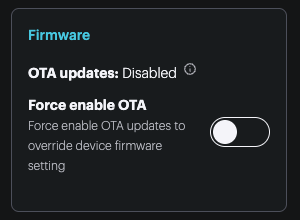
When viewing the device in the console, you can see if the device has disabled updates, and optionally force updating even if disabled.
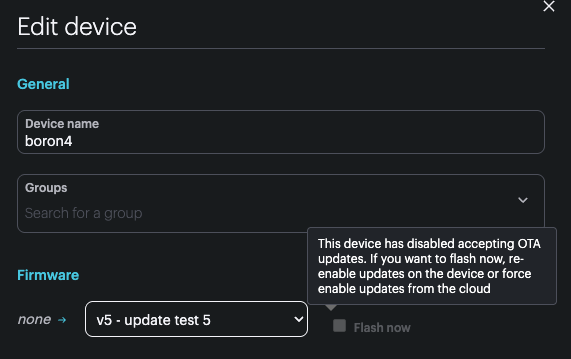
When locking a device to a specific product firmware version, you can also see if the device has disabled updates.
Historically, before SYSTEM_THREAD(ENABLED) was widely used, this was important because while an update was being downloaded, your application firmware would stop running. Obviously this would be bad in the scooter example use-case. In modern versions of Device OS, however, most devices and applications can handle the update occurring concurrently with your firmware. In this case, you may prefer to use reset control instead of update control.
Reset control
Instead of preventing the update from occurring in the background, reset control using System.disableReset() and System.enableReset() just prevents the device from rebooting after download. Except in the most timing-sensitive applications, this is usually acceptable.
Reset control occurs entirely on device and does not depend on enable/disable events being sent to the cloud, so it saves on data, but also provides less visibility in the console that restart will be deferred.
Because the new firmware will have been completely downloaded, the restart will occur quickly, especially when the new firmware uses the same version of Device OS. If a Device OS version upgrade is required, that will be downloaded after reboot, and before the updated user firmware runs for the first time, so this will take longer.
Normally you would just reenable reset by calling System.enableReset() and the device would reset if necessary.
If you want to know in advance that a reset is pending, you can monitor system events. A reset_pending event will be sent if a reset is pending.
0000051079 [app] INFO: System event: firmware_update_complete
0000051080 [app] INFO: System event: reset_pending
You can also poll for this using System.resetPending() which returns true if a reset is pending and will occur when resets are enabled again.
If the device resets by other means, such as calling System.reset(), by the reset button, or exiting hibernate sleep, the update will be applied.
Pending update
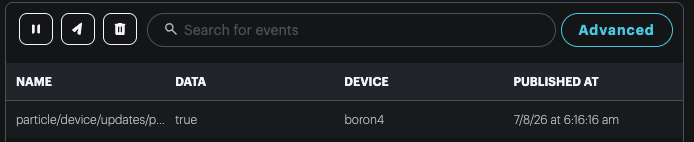
If you release a firmware version to devices using standard update, the update will not be applied until the device resets or handshakes with the cloud. You can see this is occurring from the event stream:
On-device, you can register for firmware_update system events and the firmware_update_pending will be sent when there is an update to be applied.
You can also poll for this using System.updatesPending().
You could then force a reset using System.reset() to immediately reset. The update will be downloaded and applied after reboot.
Preventing sleep during download
If an update is being downloaded in the background, you can monitor the status by subscribing to the firmware_update system event. There are several sub-events specified by the param value.
firmware_update_begin(0)firmware_update_complete(1)firmware_update_progress(2)firmware_update_failed(-1)
After connecting to the cloud, you will typically receive a firmware_update_begin within 8 seconds of cloud connection complete. If you are using sleep modes, you should avoid sleeping if a download has begun in the background until it is complete or failed.
If you are aggressively sleeping after very short intervals online, you don't need to wait the full 8 seconds on every wake cycle, but you should do so at least once a day to make sure you can receive updates.
Demo firmware
To see the events that occur during updates, you can use this example firmware. It can be used for System.disableUpdates() or System.disableReset() by changing a #define in the code.