


 Go to console

 Change theme


 Edit Account
 Logout
Temperature sensor - Tracker One
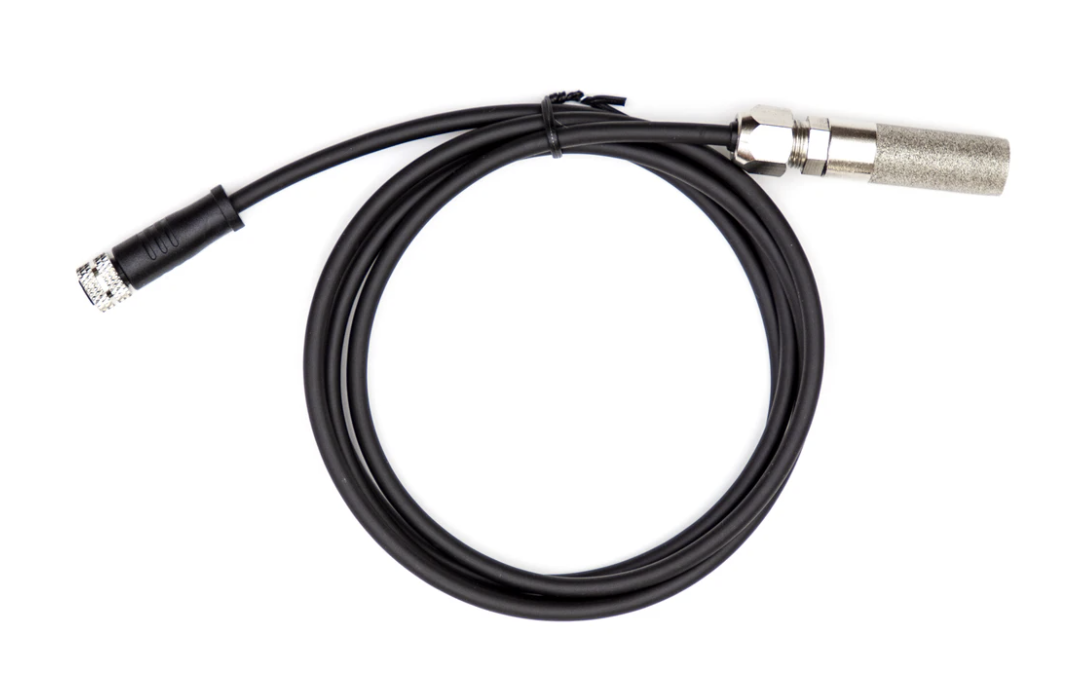
This section shows how to use the M8 Temperature and humidity sensor cable with the Tracker One to add the sensor data to the location publish.
Device and firmware
Attach the cable
Attach the M8 Temperature and humidity sensor cable to the Tracker One. You can attach the cable without powering down the Tracker One.
Start with Tracker Edge
Follow the instructions in Tracker Edge firmware - Tracker One to get the Tracker Edge firmware.
Add the sht3x-i2c library
From the command palette in Workbench, Particle: Install Library then enter sht3x-i2c.
The documentation for the library can be found here.
Customize main.cpp
All of the changes are in main.cpp. For Tracker Edge v23, you can just copy and paste this in, but for newer versions you may need to merge in the changes manually.
<div style="height:500px; overflow:scroll;">
    <pre class="codeboxPre"><code class="codebox lang-cpp" data-content="/assets/files/tracker/TempHumCable2.cpp"></code></pre>
</div>
Digging in
Add the include file for the temperature sensor.
#include "sht3x-i2c.h" // Include file for temperature sensor
Add an object for the sensor. Note that the M8 I2C interface is Wire3 not Wire as you might be used to on other Particle devices where Wire is on pins D0 and D1. On the Tracker M8 connector, Wire3 is on the same physical pins as Serial1 so you can only use one port or the other.
Sht3xi2c sensor(Wire3, 0x44);

void myLocationGenerationCallback(JSONWriter &writer, LocationPoint &point, const void *context); // Forward declaration
In setup() initialize the Tracker firmware and add a callback for when the location publishes occur.
void setup()
{
    Tracker::instance().init();

    // Enable CAN power for the M8 connector, which also powers the temperature sensor
    Tracker::instance().enableIoCanPower(true);

    // Register a location callback so we can add temperature and humidity information
    // to location publishes
    Tracker::instance().location.regLocGenCallback(myLocationGenerationCallback);

    // Initialize the M8 Wire3 port to I2C mode (instead of GPIO or serial)
    sensor.begin(CLOCK_SPEED_400KHZ);
}
Add the code to add temperature and humidity values to the loc location event. This is different than the non-Tracker version which publishes a separate event. By leveraging the location event, things like minimum and maximum location event times in configuration are followed, events can be stored when offline, and all of the data is sent in a single event, saving data operations.
// Callback function registered using regLocGenCallback to add additional parameters to the loc event
void myLocationGenerationCallback(JSONWriter &writer, LocationPoint &point, const void *context)
{
    double temp, humid;

    int err = sensor.single_shot(&temp, &humid, SHT31_ACCURACY_MEDIUM);

    if (err == 0)
    {
        writer.name("sh31_temp").value(temp);
        writer.name("sh31_humid").value(humid);

        Log.info("temp=%.2lf hum=%.2lf", temp, humid);
    }
    else {
        Log.info("no sensor err=%d", err);
    }
}
Flashing code
There are two ways you typically compile and flash code:
- Local: compiling on your computer and flashing the device by USB
- Cloud: compiling the code in the Particle cloud and flashing the device OTA (over-the-air)
When using cellular devices, you can save on cellular data by flashing locally.
Open the command palette (Ctrl + Shift + P or Command + Shift + P) and select Particle: Flash application (local).
A Terminal pane at the bottom of the window will appear with the build progress. It will sit in this state for a few minutes, but it will be much faster for subsequent builds.
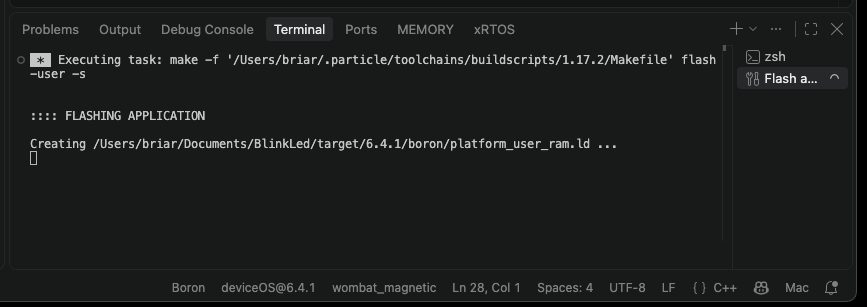
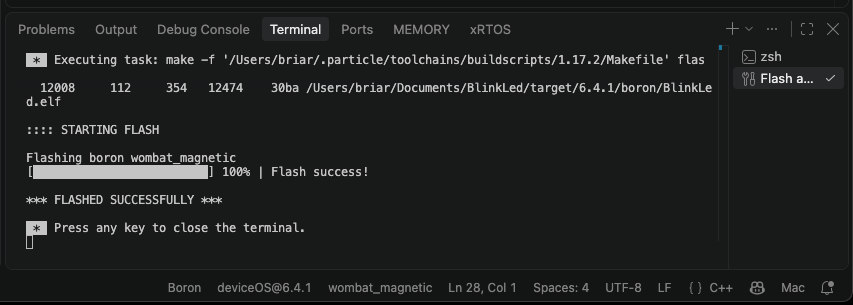
When the build is done, a message similar to this will display:
Events in the console
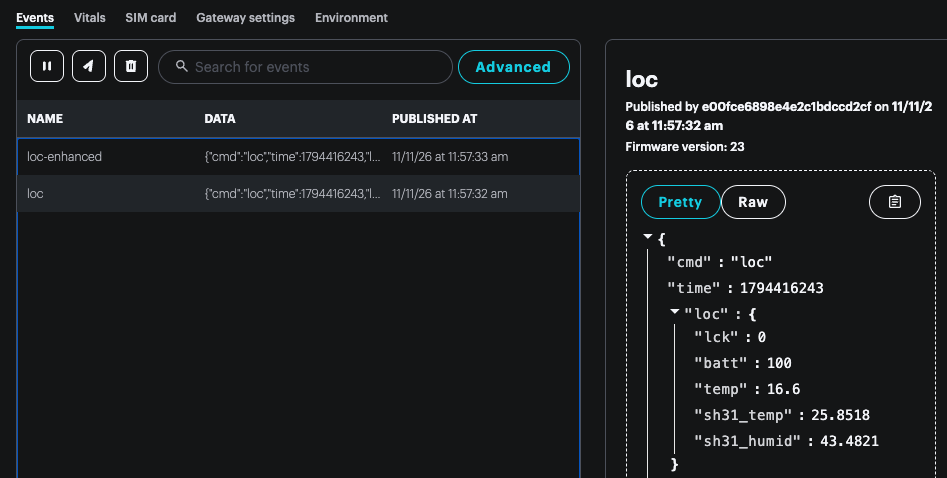
Opening the product, then the device will eventually show the location event. Since the events panel does not show historical events, and by default it will only send once per hour, it may be hard to see this.
If you click on the loc event row, it will show you greater details, including the sh31_temp and sh31_humid values that were added.
Adjusting the publish period
The publish period is set in the Tracker configuration.
Open the product, then in the left navigation bar, Configuration then Typed Configuration. Open the Location pane if not already selected.
To set the publish period when the device is not moving, set the Minimum location update frequency. The default is 3600 (1 hour). You can set it to a lower value, but be aware of the number of data operations you will use if the limit is very low. A safe value is 900 (15 minutes).
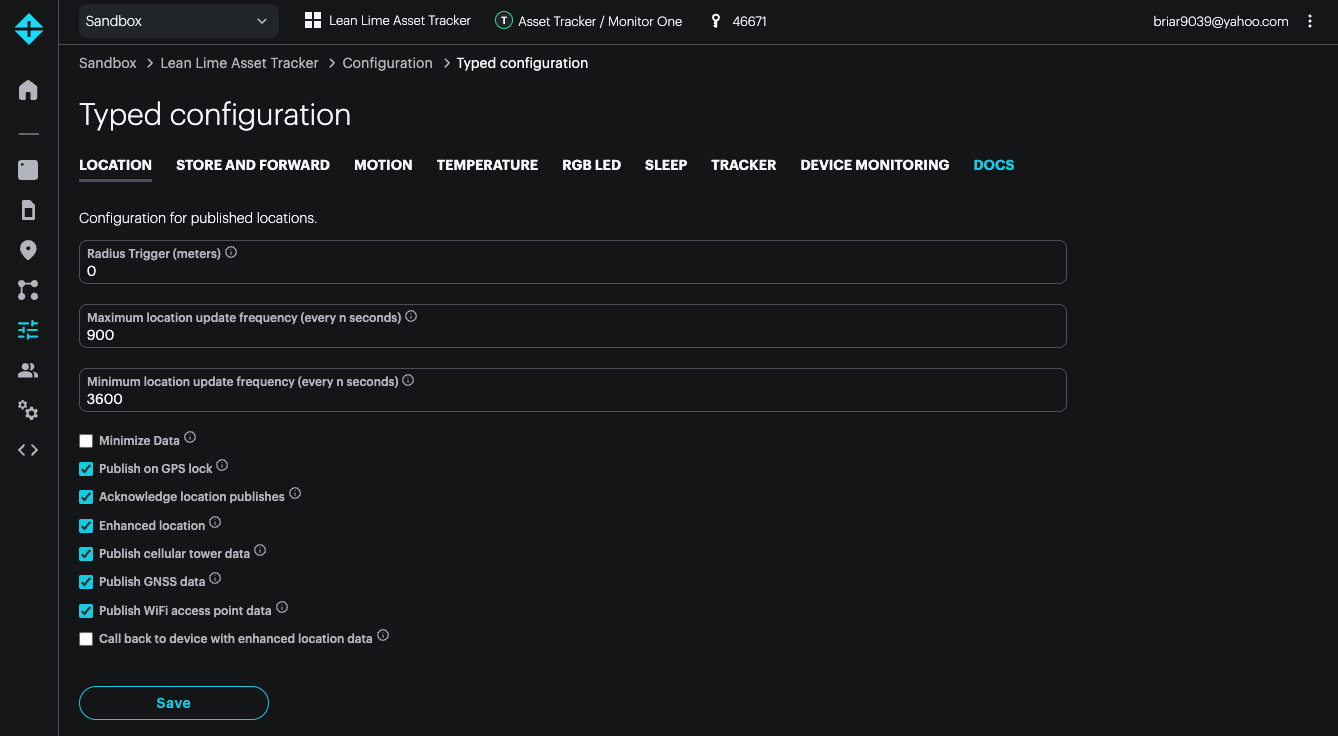
For more information, see Location settings for more information.