


 Go to console

 Change theme


 Edit Account
 Logout
Tracker Edge firmware - Tracker One
Tracker Edge is the standard firmware for the Tracker One and Tracker SoM. It can be used as-is, but often you will want to modify it to suit your specific application.
You should always start using Tracker Edge as the base, instead of programming it like other Particle devices directly to Device OS, because of the support for the Tracker One built-in peripherals and console support built into Tracker Edge.
You can skip this section for now, however, as there is significant functionality built-in and setup.particle.io will update your device to the latest Tracker Edge.
Get the Tracker Edge firmware
To get the latest Tracker Edge firmware version from Github in Workbench, the easiest option is to use the Github extension.
The Github extension in Workbench makes it easy to use Github. It is typically automatically installed and ready to use.
Open the command palette (Ctrl + Shift + P or Command + Shift + P). Start typing "git" to see a list of commands available.
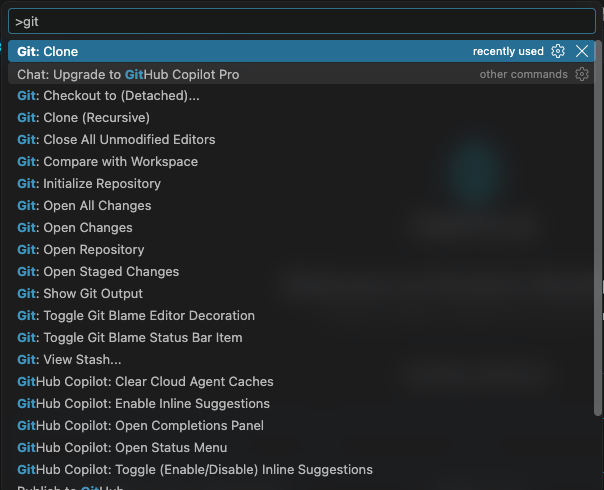
If you want to make a clone of a repository you can use Git: Clone (Recursive). You can use the non-recursive option as well for most repositories, but some like tracker-edge and device-os require it, and it doesn't hurt to use it all of the time. Recursive also clones submodules, which you could also do using git submodule init recursive from the command line, but the built-in version is usually easier.
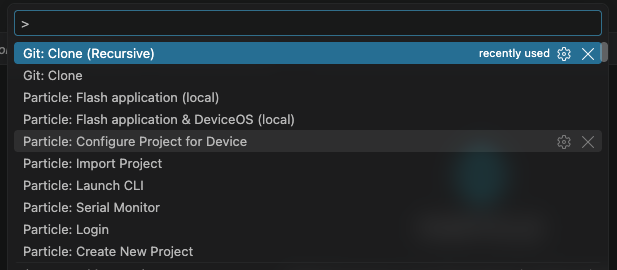
If you haven't signed in yet, sigh in with your Github credentials.
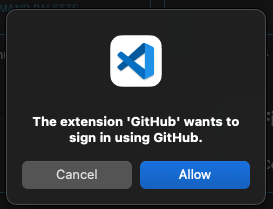
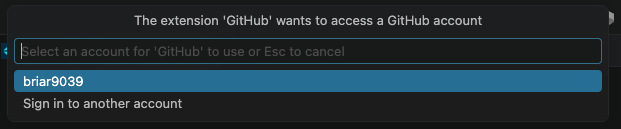
You will be prompted for where to clone from, enter the repository https://github.com/particle-iot/tracker-edge.

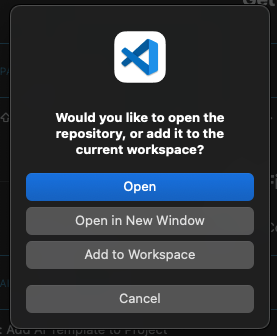
When the clone is complete you are prompted for where to open it. You should only select Open (replaces current window) or Open in New Window. Using the Add to Workspace option will create a multi-root workspace, with multiple projects, which does not work well with the Particle extension.
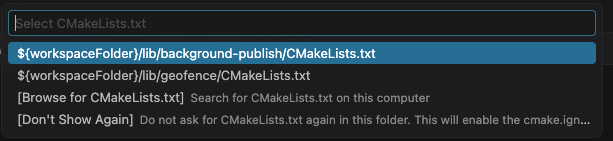
If you are prompted to Select CMakeLists.txt, just use Escape to exit the request, or select Don't Show Again. The main tracker-edge firmware doesn't use CMakeLists.txt.
Open the command palette (Ctrl + Shift + P or Command + Shift + P) and select Particle: Configure project for device.
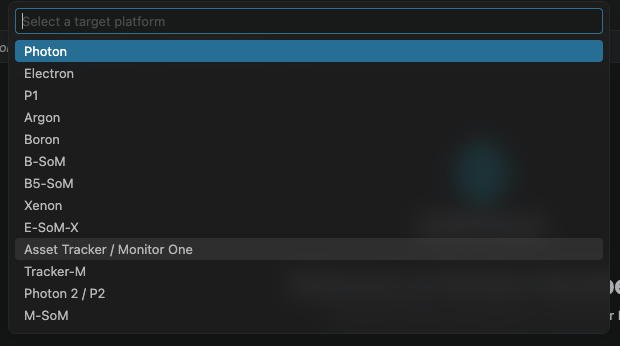
Select Asset Tracker / Monitor One.
Select the version of Device OS for the current Tracker Edge firmware. This is currently 6.5.0 or later.
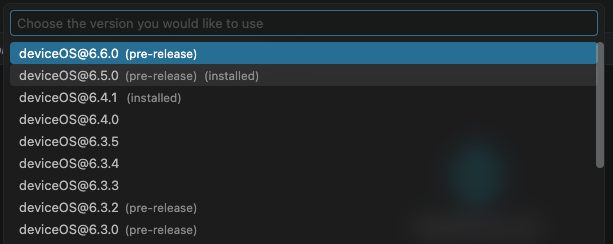
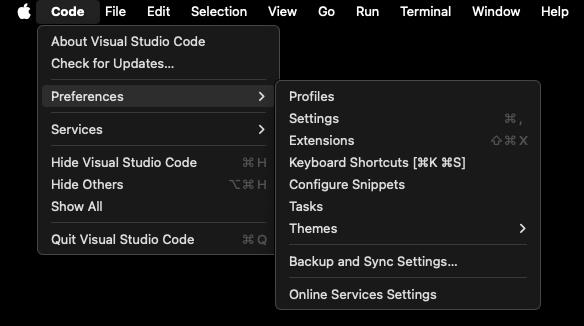
If you do not have the option for 6.5.0, select Preferences then Settings in VSCode.
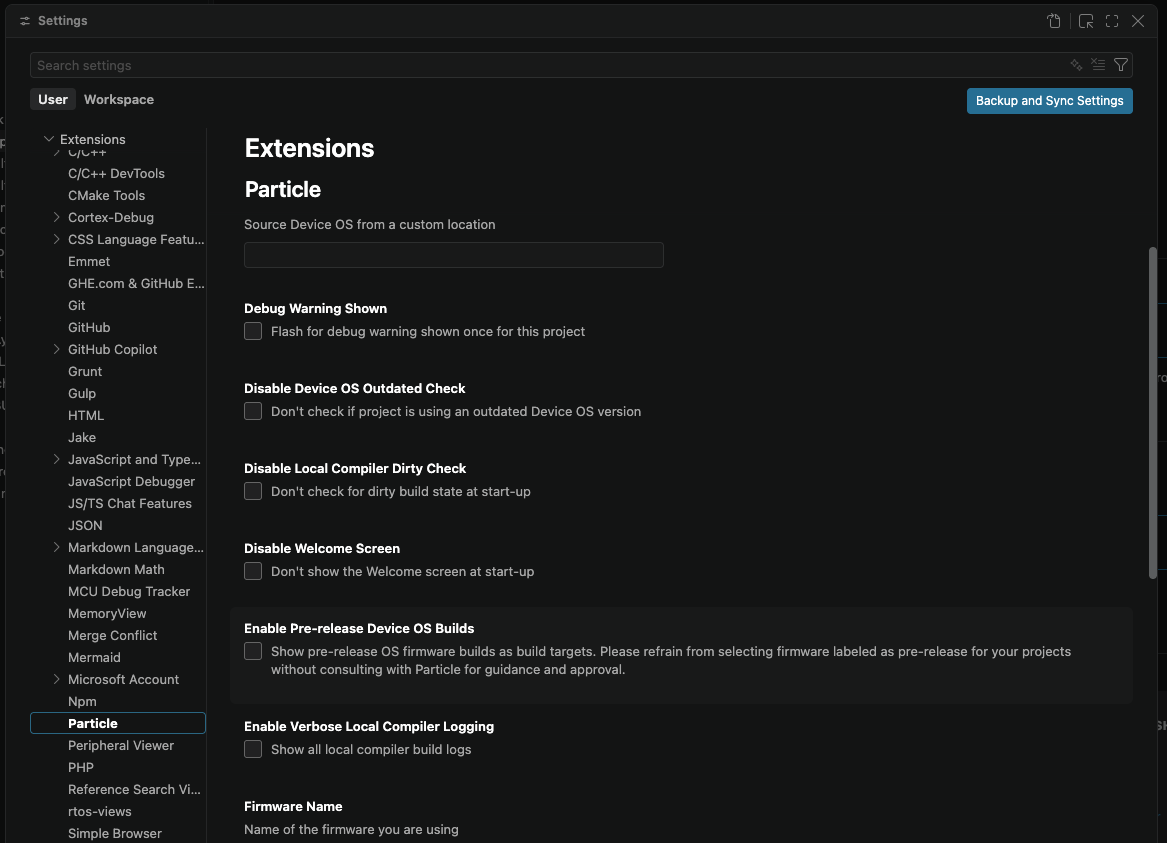
Select Extensions then Particle. Check the checkbox for Enable Pre-release Device OS Builds.
Flashing code
There are two ways you typically compile and flash code:
- Local: compiling on your computer and flashing the device by USB
- Cloud: compiling the code in the Particle cloud and flashing the device OTA (over-the-air)
When using cellular devices, you can save on cellular data by flashing locally.
Open the command palette (Ctrl + Shift + P or Command + Shift + P) and select Particle: Flash application (local).
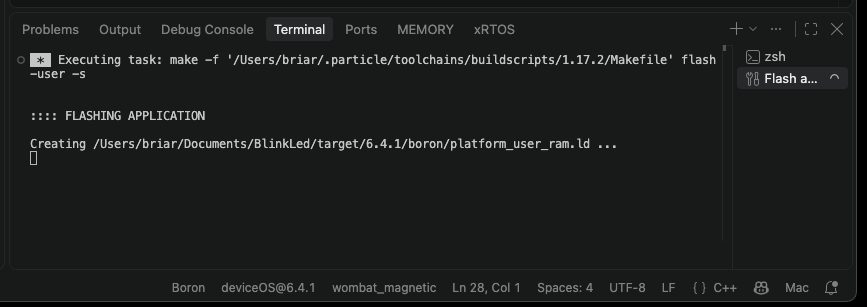
A Terminal pane at the bottom of the window will appear with the build progress. It will sit in this state for a few minutes, but it will be much faster for subsequent builds.
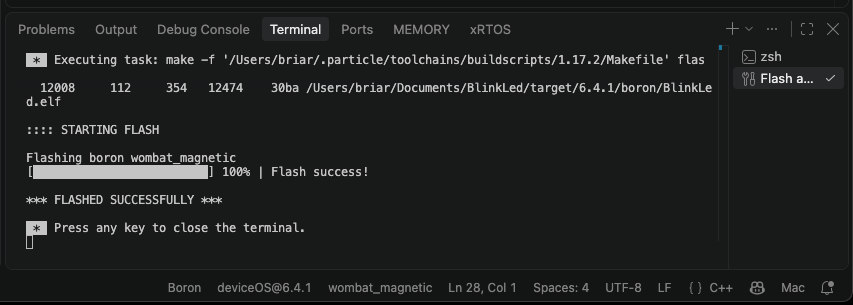
When the build is done, a message similar to this will display:
Next steps
- Learn more about Tracker Edge firmware
- Learn about Tracker One expansion options