


 Go to console

 Change theme


 Edit Account
 Logout
Device fleets
This section demonstrates device fleets which allow you to group devices with a common set of firmware and manage them as a group, allowing automatic firmware updates and fleet monitoring.
Any product can have multiple devices, including those in the free tier.
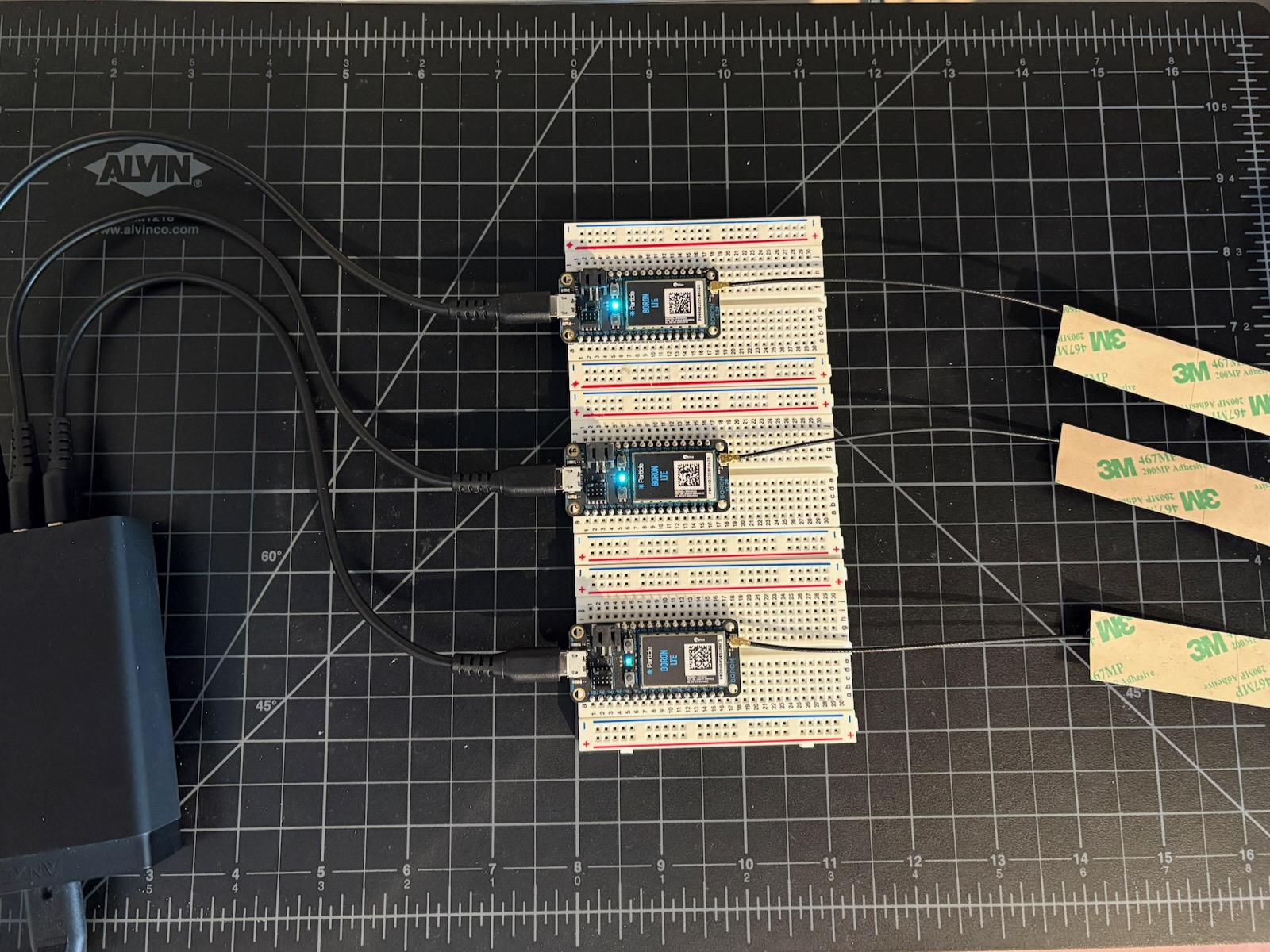
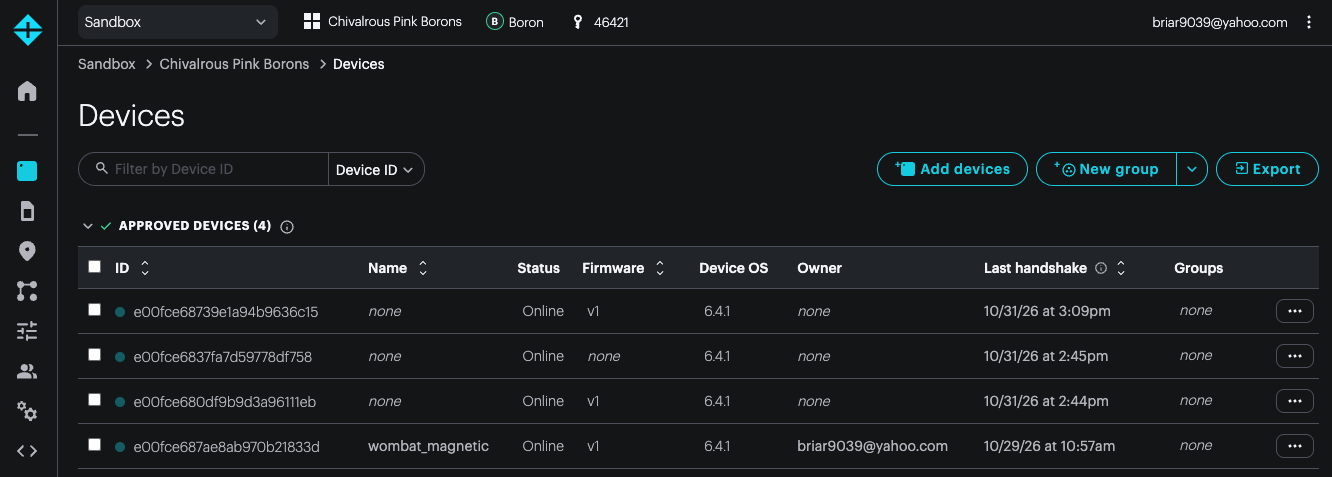
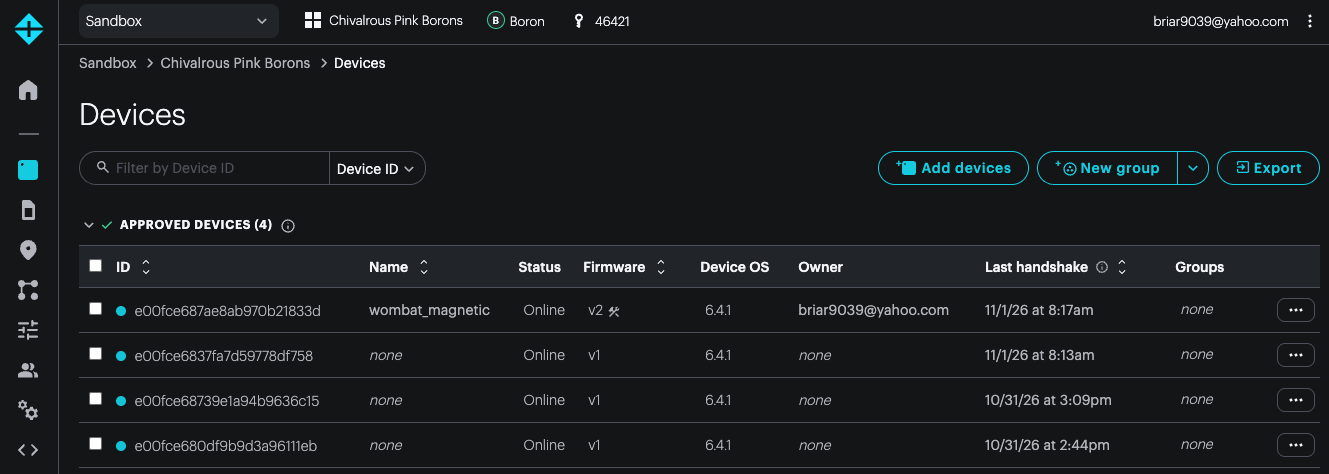
The fleet consists of 4 devices:
- All devices are added to a product (Chivalrous Pink Borons)
- One device is for development and it is claimed to a user and named (wombat_magnetic)
- The remaining devices are unclaimed and unnamed, which is a common device fleet setup
Firmware
The firmware from the last section, environment variables, will be reused in this section with a fleet of devices.
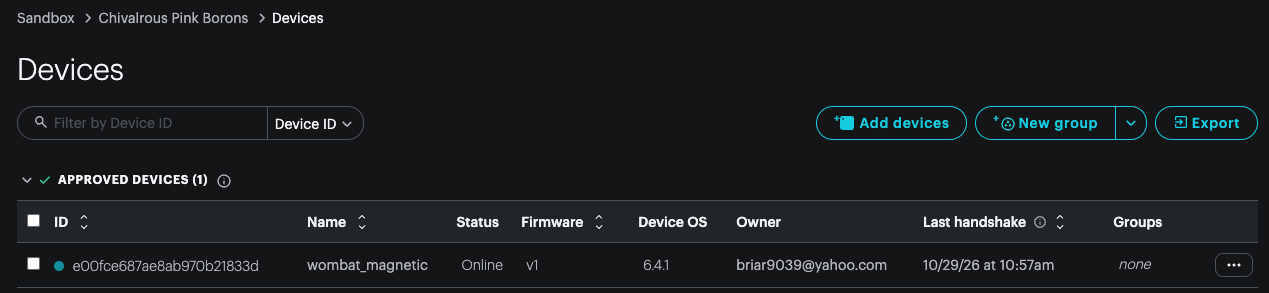
I've opened console.particle.io, then my product (Chivalrous Pink Borons), then the product device list.
Since there's a PRODUCT_VERSION(1) in the firmware, you can see that listed in the product device list now.
Add devices to your fleet
When you order Particle devices in bulk (tray or reel quantities) from the Particle store, you'll get an email containing the Device IDs and serial numbers for the devices in your order.
For my small test, I created a text file with the serial numbers in my test fleet.
- You can scan the serial number from the data matrix code on the serial number label (it looks similar to a QR code)
- You can obtain the Device ID if you are connecting the device by USB, using
particle identify, or when flashing code
Click the Add devices button in the device list.
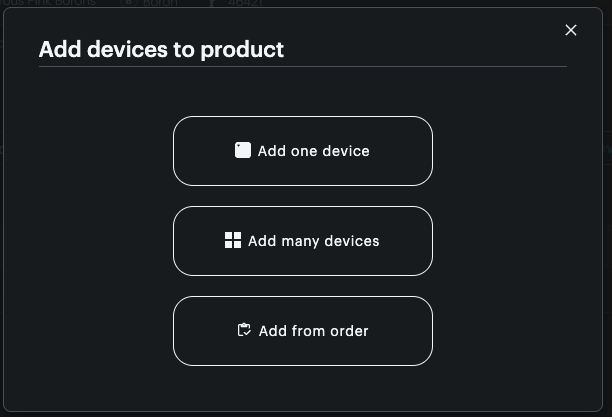
Then Add many devices, and drag and drop the file of Device IDs or serial numbers onto the window. This step does two things:
- Adds the device to your product
- Activates the SIM (for cellular devices)
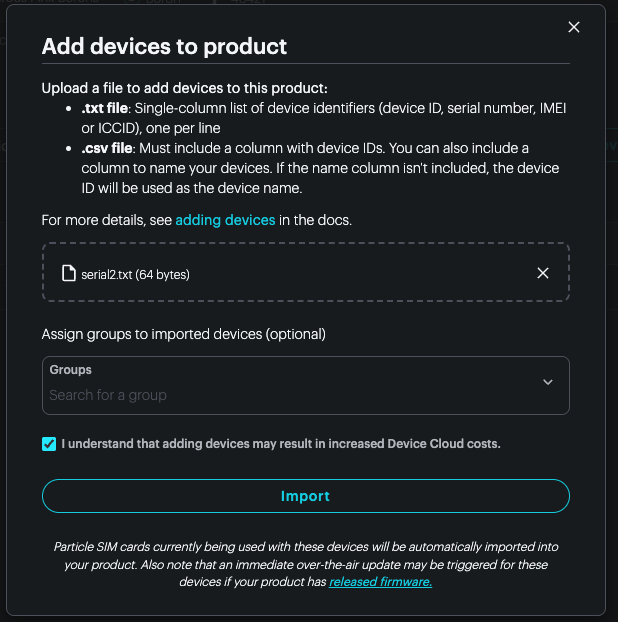
If you are part of a growth or enterprise plan, adding the device to your product does not immediately start billing. Billing only starts after the device connects to the cloud the first time, so you can add the device to your product during manufacture without having to worry about incurring costs.
Updating devices
I recommend flashing Device OS and your product firmware by USB or SWD/JTAG during manufacture, rather than doing the initial update OTA. This speeds up the first connection process. The scaling section of the docs provides more best practices.
For a few test devices, using Particle: Flash application & DeviceOS (local) over USB works fine.
Device list
Once all of the devices have been added to your product and come online, you can see them in your device list.
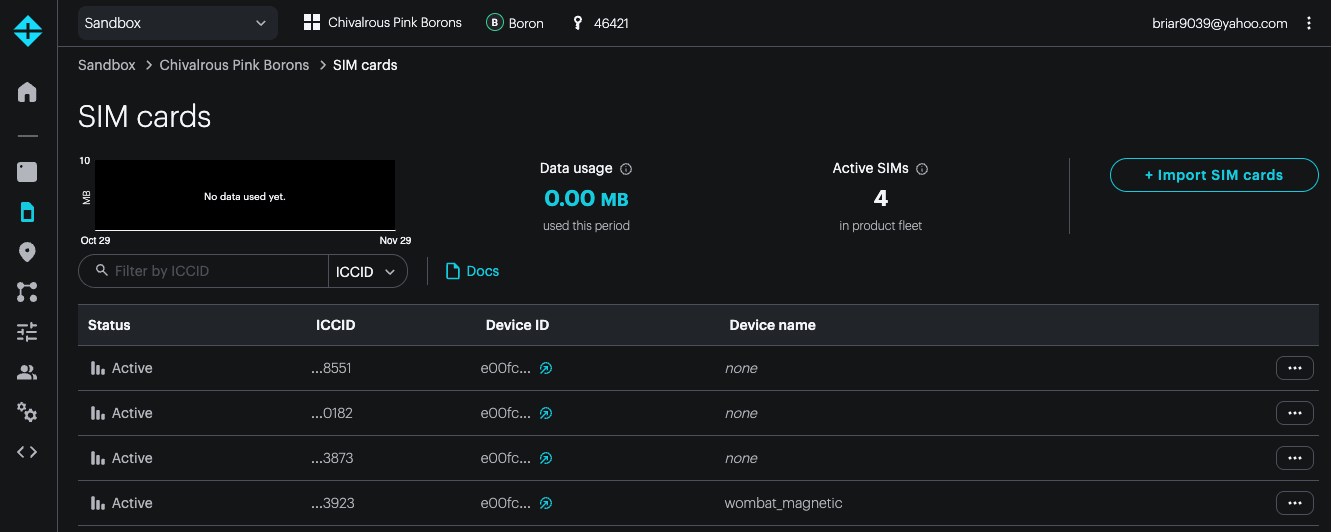
Since my test devices are cellular, there is also information in the SIM panel.
Releasing firmware
Releasing firmware to a fleet requires that you:
- Write the firmware
- Typically test it with your development device for faster iterative development
- Get the firmware binary
- Upload the firmware to your product
- Release the firmware to one or more devices
Get the firmware binary
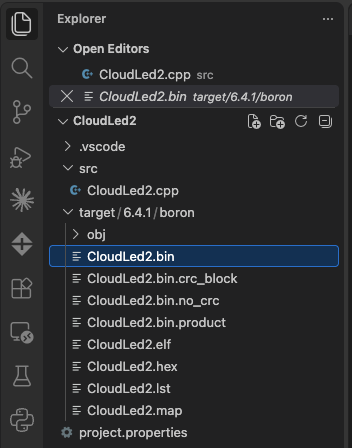
Particle user firmware is stored in a .bin file. When you compile locally it will be in: target/(version)/(platform)/(project name).bin in your project directory. In this example target/6.4.1/boron/CloudLed2.bin.
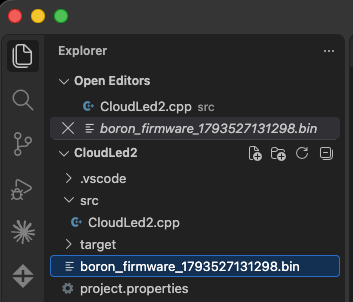
If you've cloud compiled your firmware, it will be in a firmware.bin file in the top level of your project. The name may be different but will follow that general pattern.
Upload the firmware to your product
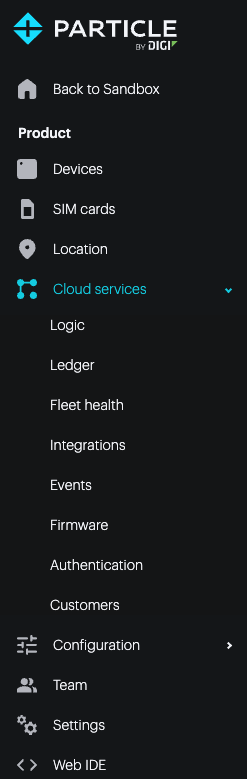
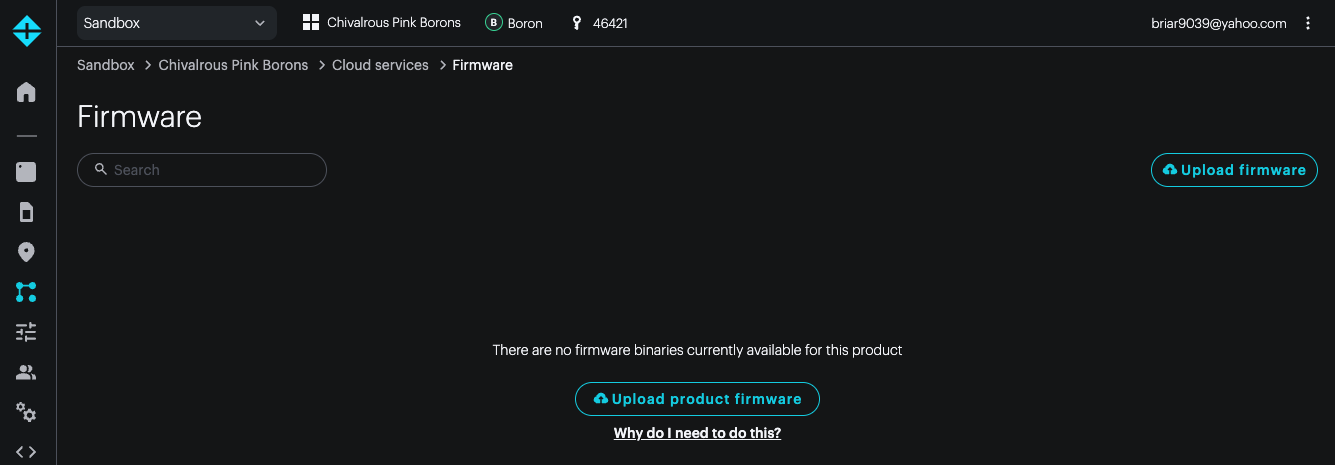
To upload firmware, go to your product, Cloud services, then Firmware.
The page will show any firmware you have previously uploaded. Use Upload firmware to upload new firmware.
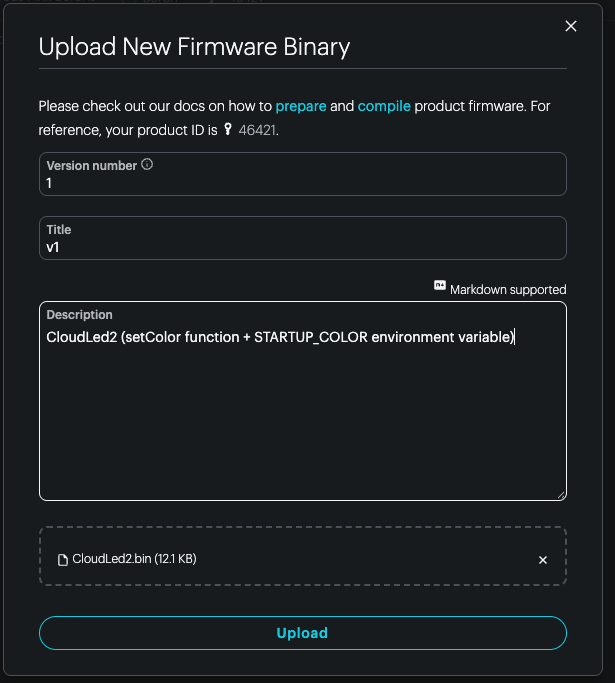
Fill in the parameters. The version must match the PRODUCT_VERSION() in your code. The version numbers are allocated sequentially.
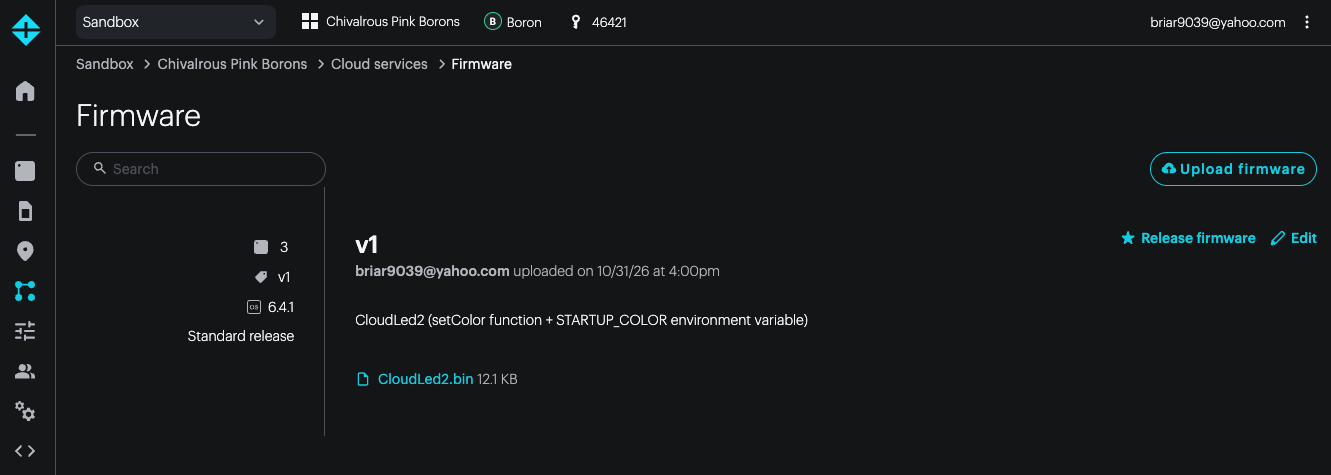
Release the firmware to one or more devices
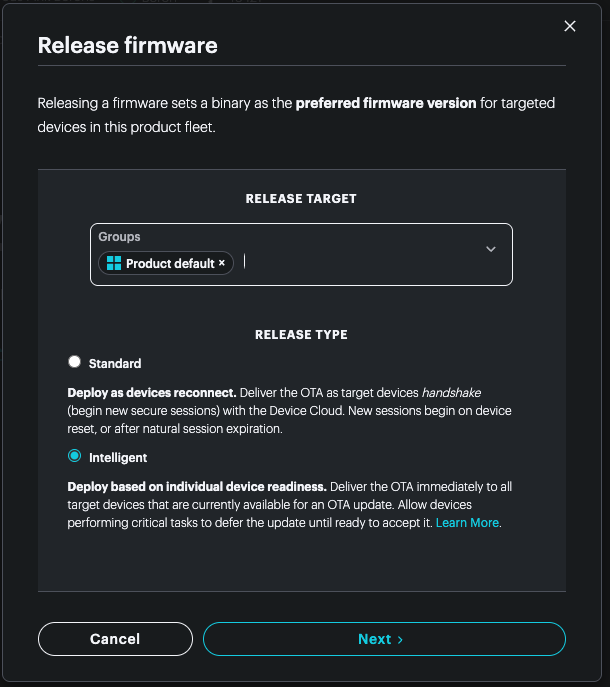
To release a version of your firmware, in the firmware list click Release firmware on the right side.
Select the devices you want to flash to, either a device group or Product default.
You will normally use a device group with one or a small number of devices to test your firmware before a wide deployment.
In order to set the Product default the firmware must be running on at least one device. Since I manually flashed it in the previous section, that requirement is met and I can select it now.
Intelligent updates flash the device immediately, if possible, or when the device next comes online. This is usually the best choice.
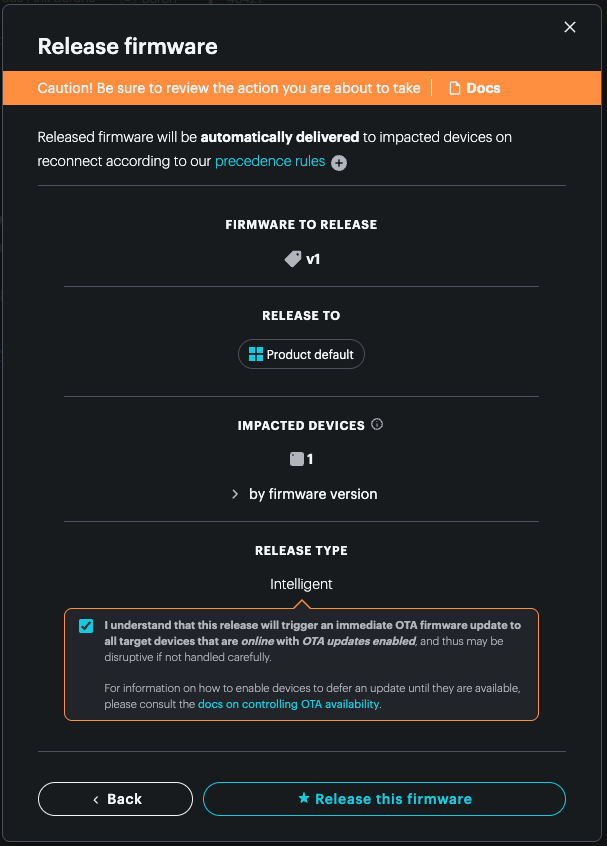
Finally, confirm the update.
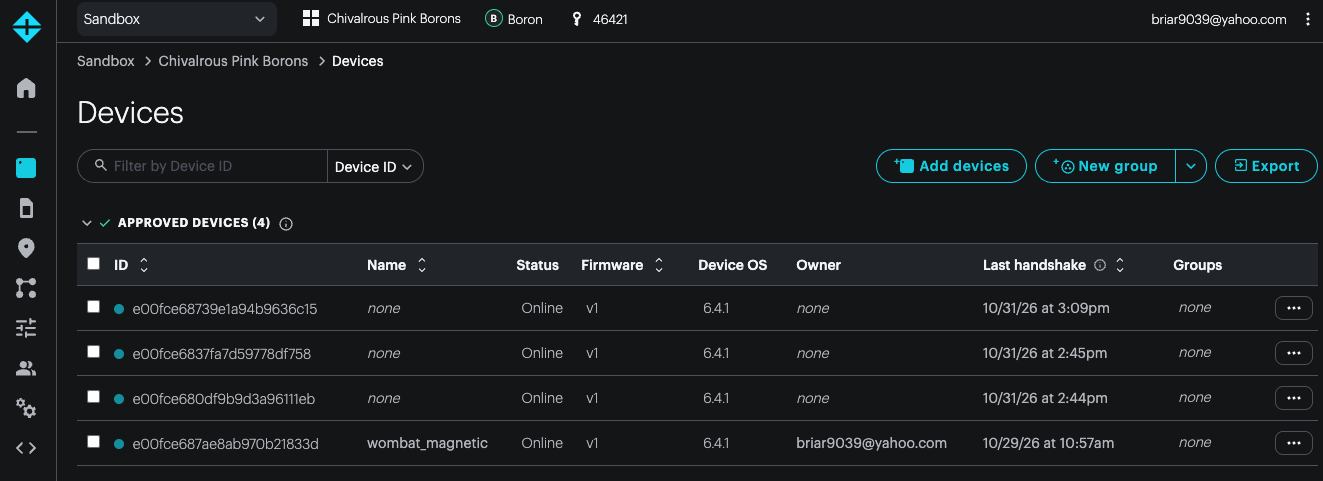
Here's the updated device list. Of note:
- All devices are online (cyan dot to the left of the ID), and the status is Online
- 3 of the devices are unnamed; this is common, though you can name every device if you want to
- All are running firmware v1
- 3 of the devices have no owner. This is normal for device fleets
Mark development
If you plan to flash your testing device by USB, be sure to set it to Mark development device. This tells the cloud that you will be flashing custom firmware to the device and it should not manage the version to match the fleet. If you do not do this, you may find that as soon as the device connects to the cloud it will revert to the product default or pinned version for the device.
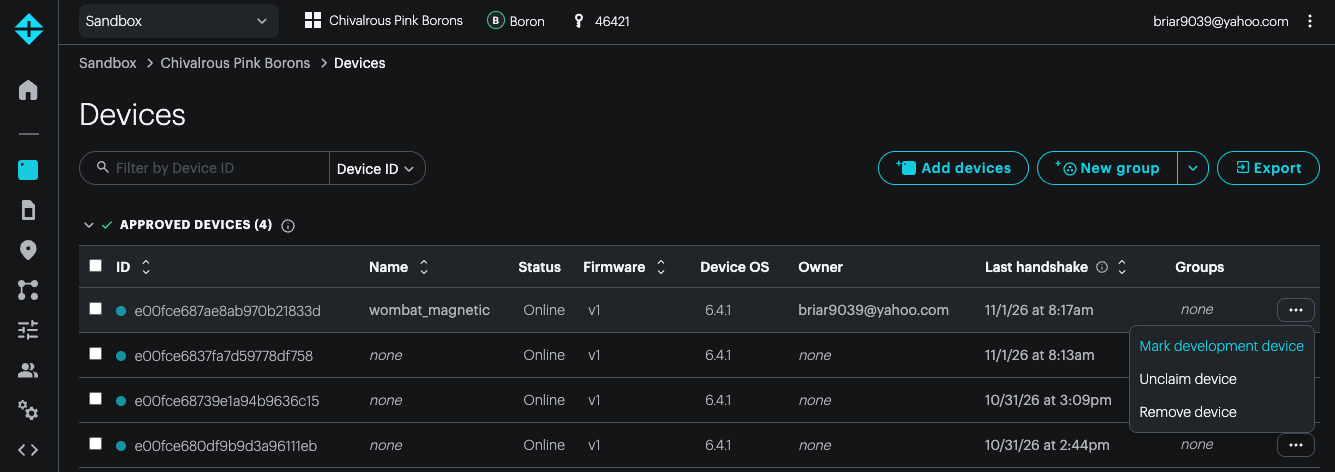
You can tell which devices are development by the tool icon next to the firmware version in the product device list.
Calling product device functions
You can use the setColor for each device individually. The easiest way to do this is using the console device view, because the devices are not claimed (do not have an owner) and do not have a name set. It's recommended that you leave product fleets unclaimed, other than the test devices on your desk. Naming is optional, as well.
It is possible to use the Particle CLI for these devices, but you need to specify the product and Device ID instead of the name:
particle call e00fce68739e1a94b9636c15 setColor 255,0,0 --product 46421
e00fce68739e1a94b9636c15is the device ID instead of the name--product 46421specifies the product ID, which is a number; it's listed in numerous places in the console when you are viewing a product
Per-device configuration
When devices other than the first test device (wombat_magnetic) restart, there is no startup color set. You can go into those devices and set the STARTUP_COLOR individually for each device. This is the power of the environment variable: you can set values at the organization, product, and device level.