


 Go to console

 Change theme


 Edit Account
 Logout
Firmware release process
One of the most valuable features of a Particle product is being able to seamlessly manage firmware on a fleet of IoT devices. You now have the ability to continuously improve how a device functions after deployment. In addition, product firmware management allows you to quickly and remotely fix bugs identified in the field, fleet-wide.
This happens through firmware releases, which targets some or all of a device fleet to automatically download and run a firmware binary.
Recommended development flow
Iteratively write and test firmware
In most cases we recommend having one or more devices on each developer's desk for local testing.
- Development is done in Particle Workbench
- The device is flashed by USB
- Status LED and buttons are easily accessible
- The USB serial debug logs can be easily accessed
- A CMSIS/DAP debugger can be used (optional)
Mark development
When viewing the device list for a product, there are options in the ... button.
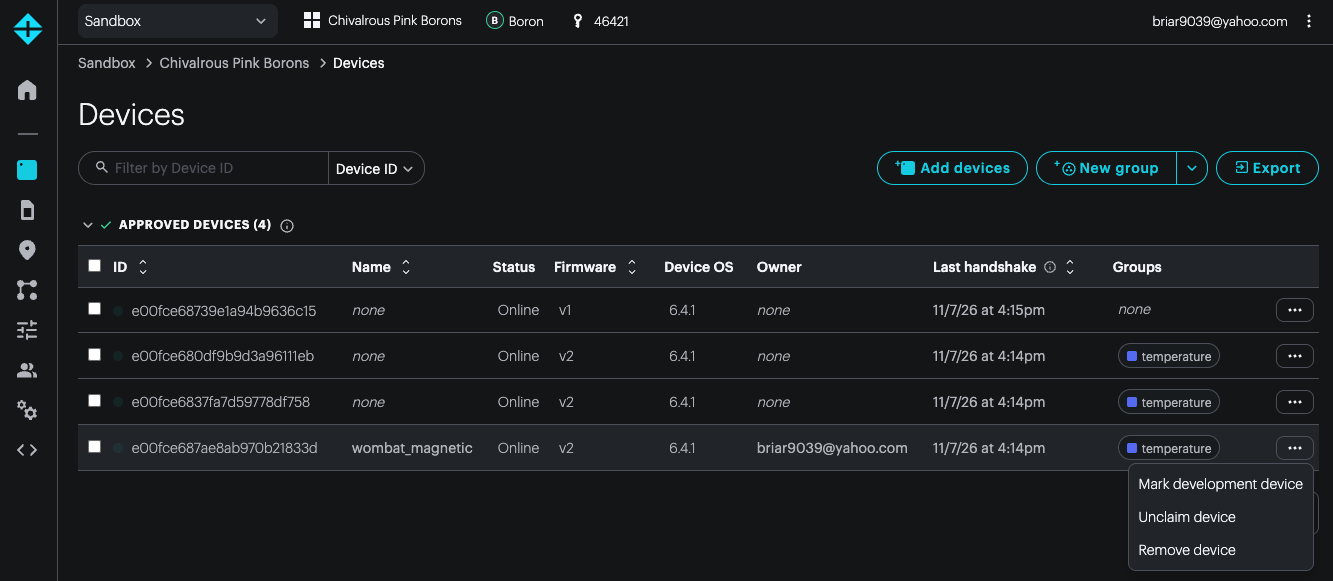
Using Mark development does several things:
- Disables fleet flashing to the device. If you are doing active development and flashing your device by USB or OTA directly from Particle Workbench you need to enable Mark Development, otherwise the cloud may immediately overwrite the firmware you flashed with the product default or pinned versions.
- Enables override for all typed configuration settings for Tracker devices.
- Allows local flashing by USB for devices with device protection enabled (enterprise accounts only).
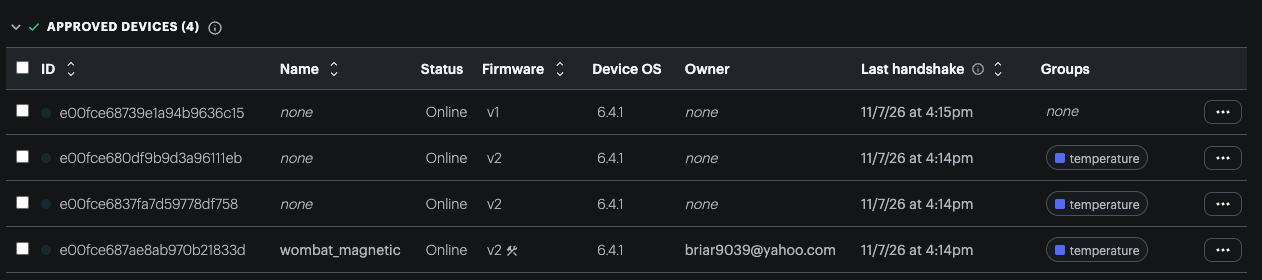
You can tell which devices have Mark development set by the tool icon to the right of the version number in the product device list.
Add a PRODUCT_VERSION
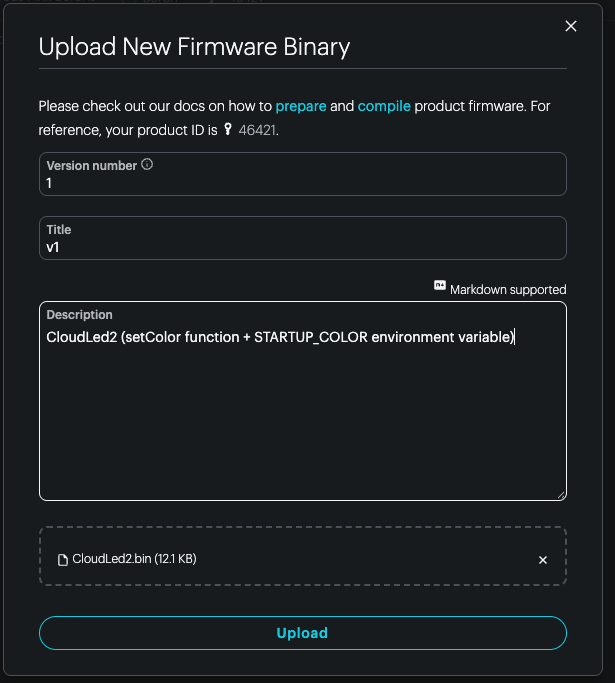
When preparing software for your product, you must include product version at the top of the firmware source code. This must also match the version specified when uploading the firmware as product firmware.
This must be added to your main .cpp file, not in a function, and after #include "Particle.h".
PRODUCT_VERSION(1); // increment each time you upload to the console
Devices that are marked as development devices do not need a valid PRODUCT_VERSION, but may include it to make it easier to use the firmware on a fleet.
PRODUCT_ID
With Device OS 4.0 and later, you only need the PRODUCT_VERSION and not the PRODUCT_ID.


Obtain a binary
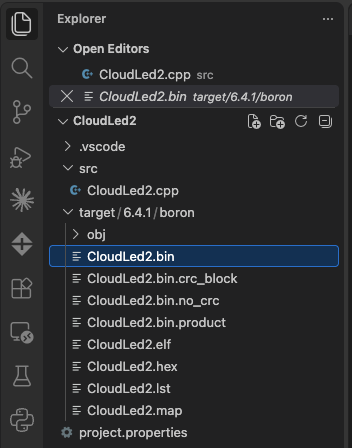
Particle user firmware is stored in a .bin file. When you compile locally it will be in: target/(version)/(platform)/(project name).bin in your project directory. In this example target/6.4.1/boron/CloudLed2.bin.
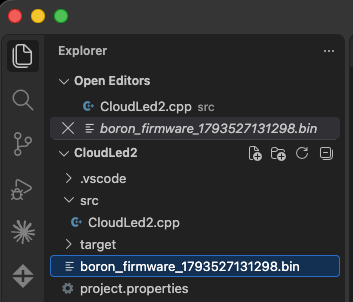
If you've cloud compiled your firmware, it will be in a firmware.bin file in the top level of your project. The name may be different but will follow that general pattern.
Upload firmware to product
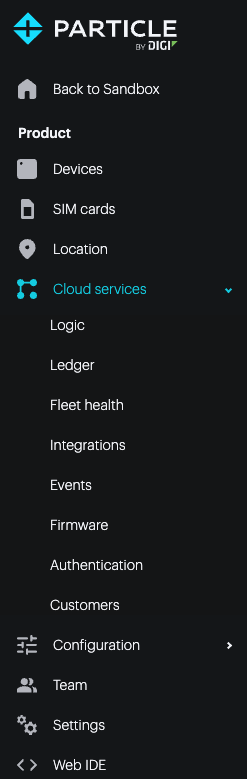
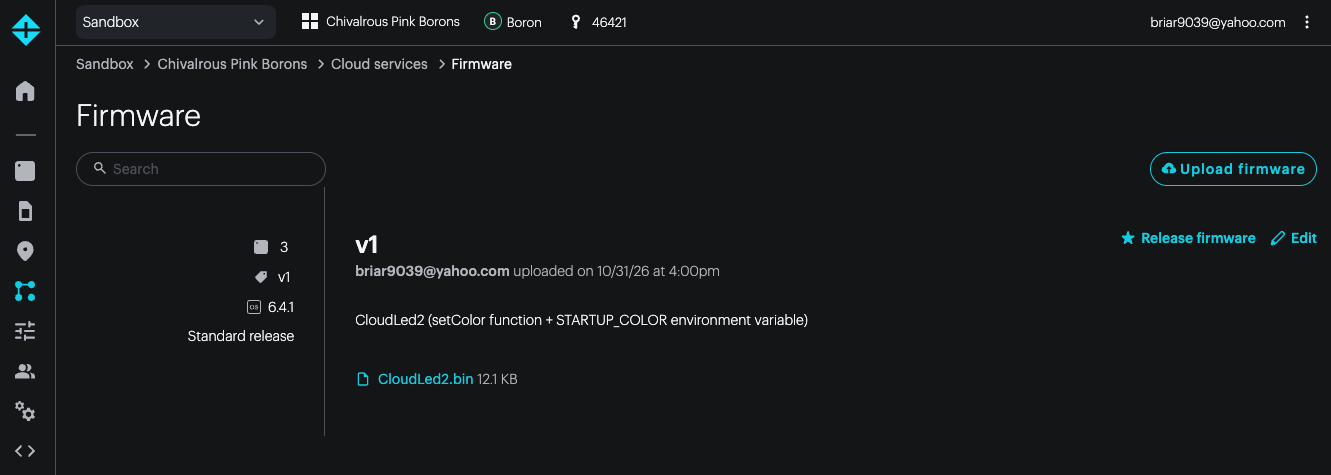
To upload firmware, go to your product, Cloud services, then Firmware.
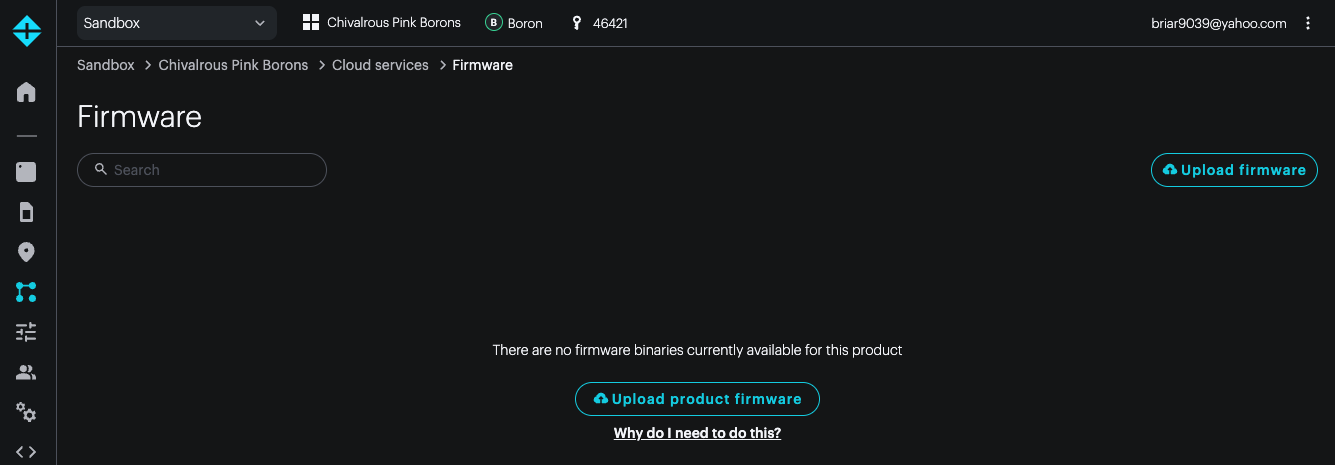
The page will show any firmware you have previously uploaded. Use Upload firmware to upload new firmware.
Fill in the parameters. The version must match the PRODUCT_VERSION() in your code. The version numbers are allocated sequentially.
Release firmware for further testing
If you've already tested your firmware on your desk you can skip this step.
Using the pinned version feature, you can set the firmware on a single device to a version you've uploaded before flashing it to more of the fleet.
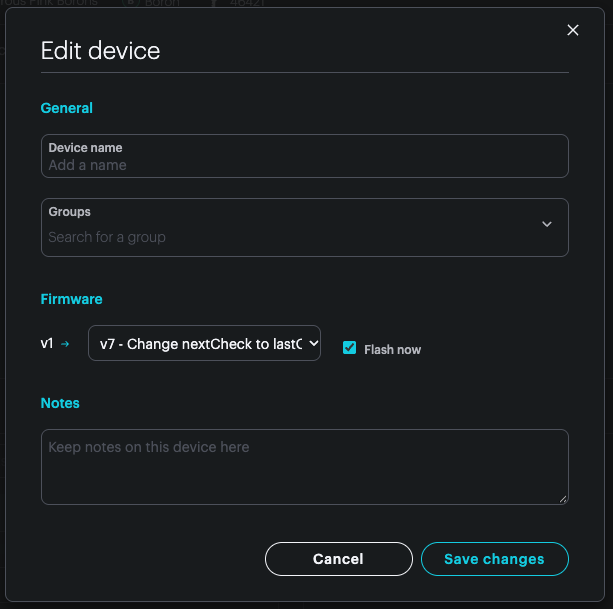
Open your product and a specific device. Click Edit in the upper right corner of the window.
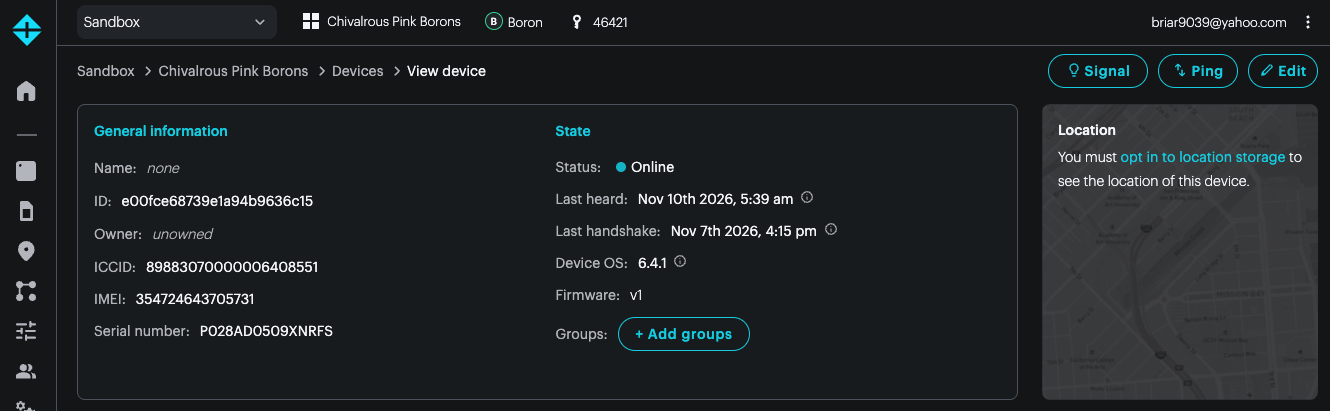
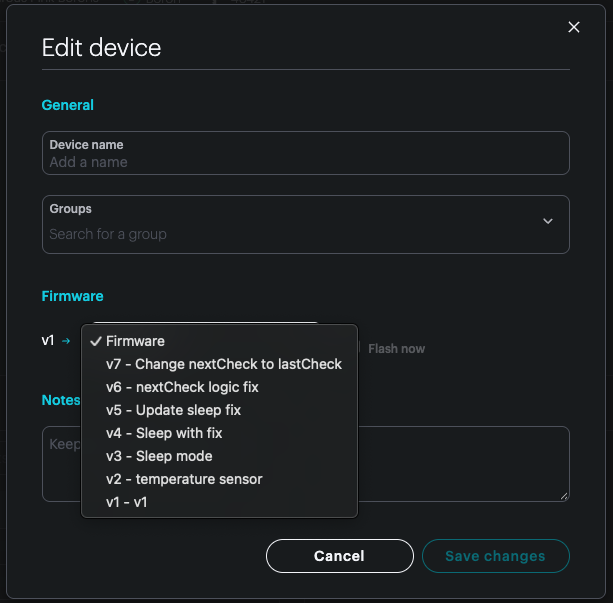
In the Firmware section you can select the version to flash. You will typically also select Flash now to do an Intelligent OTA update immediately.
The pop up menu contains a list of all of the firmware versions for your product.
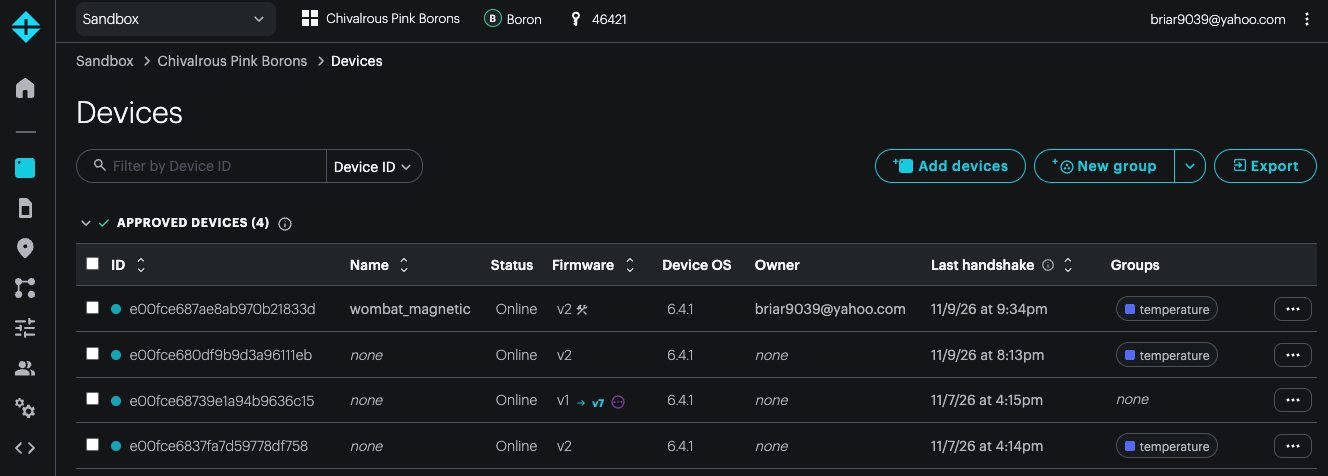
The device list will show a pending update in the version column.
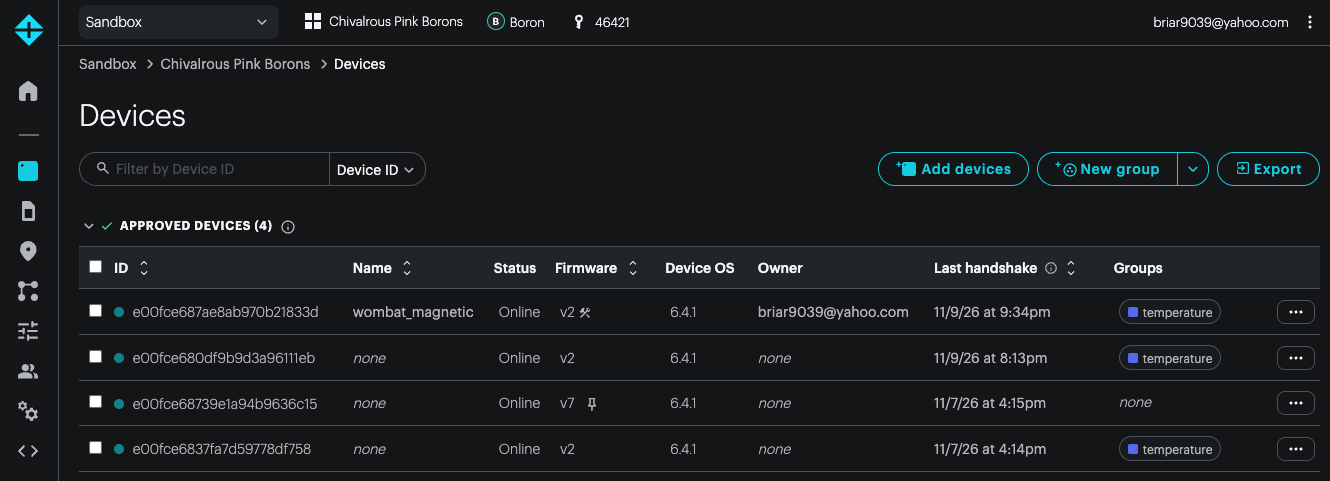
Once the version has been flashed you can see that the version has been pinned by the push pin next to the version number. You can click on it to remove the pin and restore the device to the product or group default.
Release firmware to device fleet
To release a version of your firmware, in the firmware list click Release firmware on the right side.
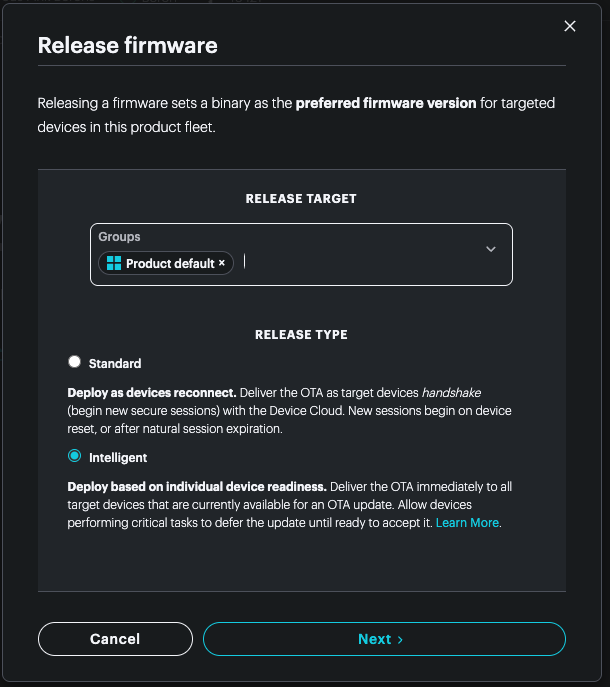
Select the devices you want to flash to, either a device group or Product default.
You will normally use a device group with one or a small number of devices to test your firmware before a wide deployment.
In order to set the Product default the firmware must be running on at least one device.
Intelligent updates flash the device immediately, if possible, or when the device next comes online. This is usually the best choice.
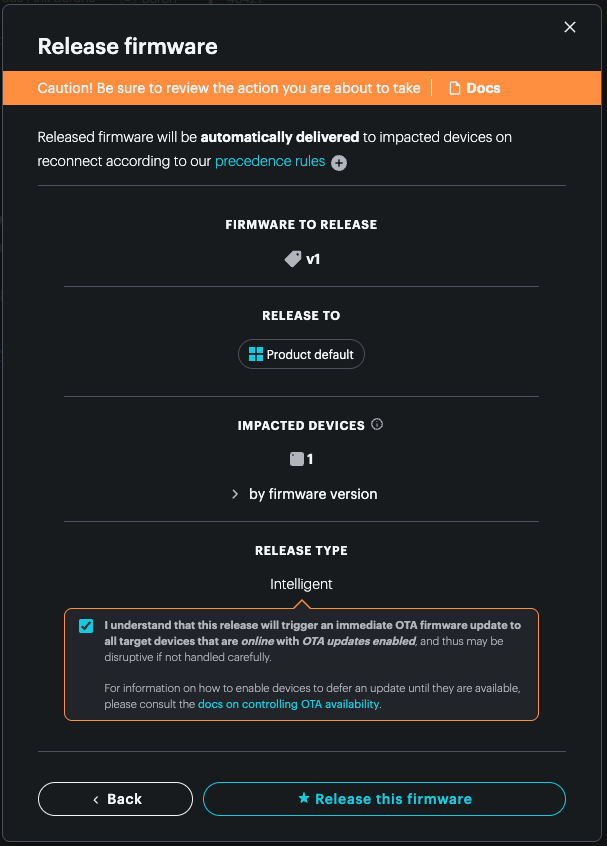
Finally, confirm the update.
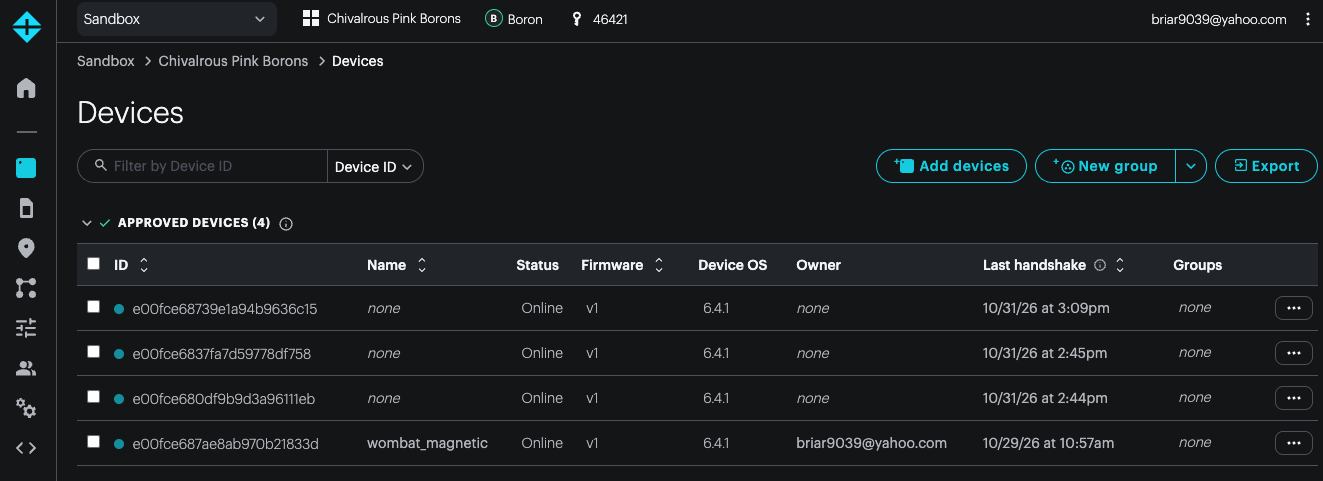
Here's the updated device list. Of note:
- All devices are online (cyan dot to the left of the ID), and the status is Online
- 3 of the devices are unnamed; this is common, though you can name every device if you want to
- All are running firmware v1
- 3 of the devices have no owner. This is normal for device fleets
Firmware precedence rules
Devices in your fleet will be targeted to receive a version of product firmware according to these precedence rules:
A device that has been individually locked to a version of product firmware is respected above all else, and will not be overwritten by any released firmwares.
If unlocked, devices belonging to a group will receive the corresponding group's released firmware (if a firmware has been released to the group). When a device belongs to multiple groups that each have released firmware, the highest firmware version will be preferred
If a device is unlocked and does not belong to any groups with released firmware, it will receive the Product default released firmware (if a firmware has been released as the Product default)
If none of the above conditions result in a device being targeted for a product firmware, it will not receive an automatic OTA update from the Particle cloud
Next steps
You may want to consider automating the firmware build and upload process using Github actions.