


 Go to console

 Change theme


 Edit Account
 Logout
Environment variables
This code demonstrates environment variables, a way to store configuration settings in the cloud. The firmware will also be used again in the next section, device fleets, allowing a per-device configuration while sharing common firmware across a fleet of devices.
Environment is a collection of lightweight, non‑secret, name - value pairs that shape the runtime environment. They are ideal for fast, system level adjustments (endpoints, feature flags, polling intervals) without changing firmware. Available in the cloud and in the firmware, they allow configuration of both Device OS features and user features in a hierarchical manner from organization, the product, with optional per-device overrides.
Environment variables are available in Device OS 6.4.0 and later. If you build the firmware with a target of an older version of Device OS, it will still build, but without the functionality so you can still test the fleet functionality.
For more information, see Environment.
Firmware
As in the previous section, you can either:
- Particle: Create New Project, create CloudLed2, and paste the contents CloudLed2.cpp file into your file.
- Download the zip file, extract, then Particle: Import Project.
As in the previous section, also do:
- Particle: Configure project for device
- Particle: Flash application (local)
Gen 2 Devices (STM32) (E-Series, Electron, Photon, and P1; does not include E404X):
Gen 2 devices do not support environment variables, but the fleet code can be used. Be sure to update the PLATFORM_ID at the beginning of the .cpp file to match your product ID on Gen 2 devices.
Explaining the code
The code is mostly the same as before.
Setting PRODUCT_VERSION is necessary for fleet firmware updates. The version number must be embedded in the firmware this way for it to be tracked properly. I'll upload the built version to the cloud later.
PRODUCT_VERSION(1);
In setup(), the check for HAL_PLATFORM_ENV includes the block of code only when targeting versions of Device OS that support environment variables (Device OS 6.4.0 and later). A similar technique can be used for checking for cellular, Wi-Fi, etc.. See Checking for features for more information.
The System.getEnv() call gets the value of an environment variable.
Environment variables set from the cloud are delivered to the device as an OTA update and the device is reset. An environment variable will never change while your code is running, and it will be available immediately at boot, before cloud connecting.
#if HAL_PLATFORM_ENV
    // On platform and Device OS version that support environment variables, allow a startup color to be defined
    if (System.getEnv("STARTUP_COLOR", startupColor)) {
        Log.info("STARTUP_COLOR=%s", startupColor.c_str());
    }
#endif // HAL_PLATFORM_ENV
The business logic in loop() takes care of calling setColor once after cloud connecting with the value set by the environment variable. After the normal 10 second expiration period expires, the device reverts to using the system color (breathing cyan). It also supports function calls to change the color at runtime as in the previous example.
    if (Particle.connected() && !startupColorShown && startupColor.length()) {
        // There is a startup color and it has not been shown yet so show it now
        startupColorShown = true;
        setColor(startupColor);
    }
Setting an environment variable
There are three steps to using an environment variable:
- Create the environment variable
- Set the value (or overriding the value)
- Deploy the updates to device (or fleet)
I've opened console.particle.io, then my product (Chivalrous Pink Borons), then Configuration, then Environment variables.
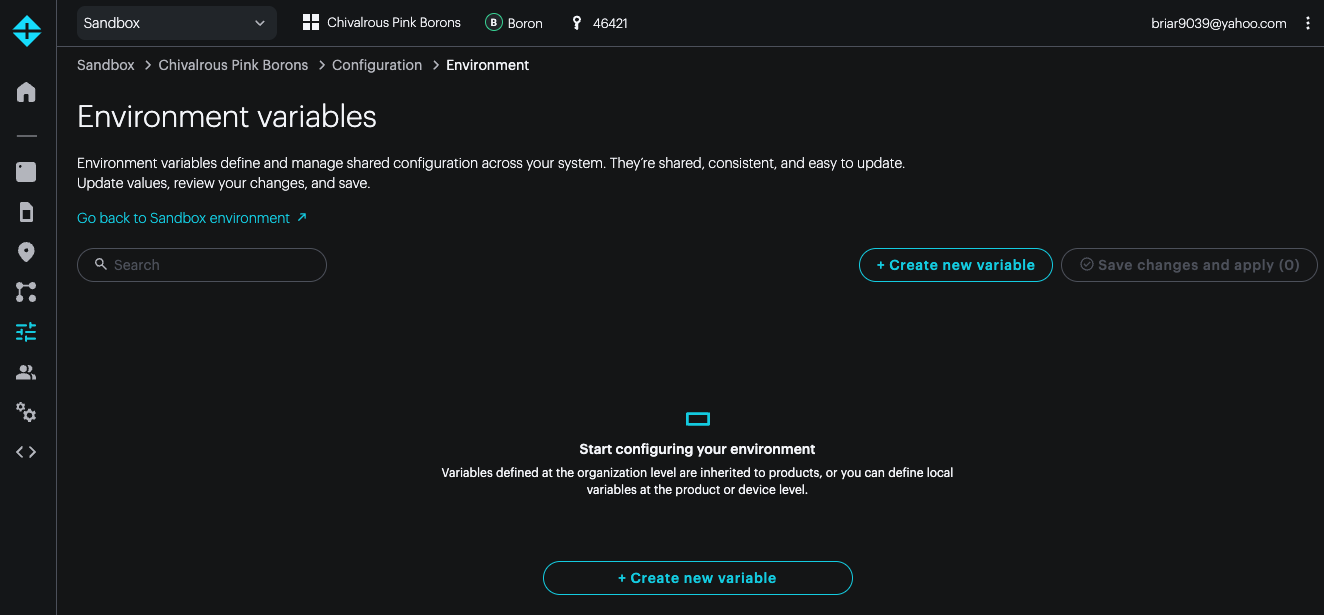
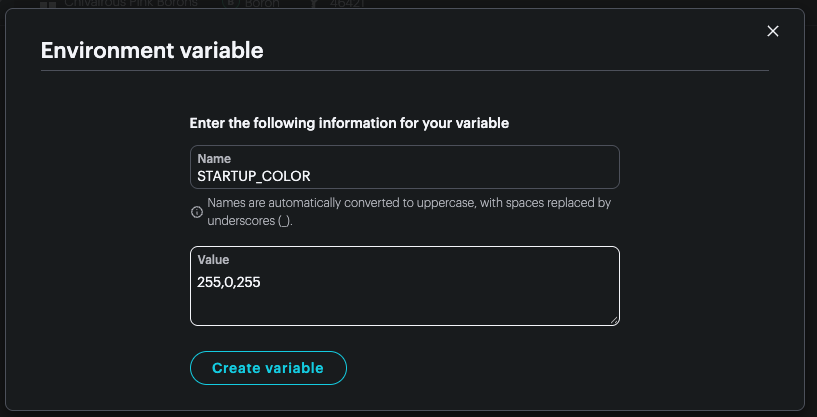
Use Create new variable to create a new variable with:
- Name:
STARTUP_COLOR - Value:
255,0,255(no spaces, commas between numbers)
When you Create variable it may disappear from this window, but it will reappear later.
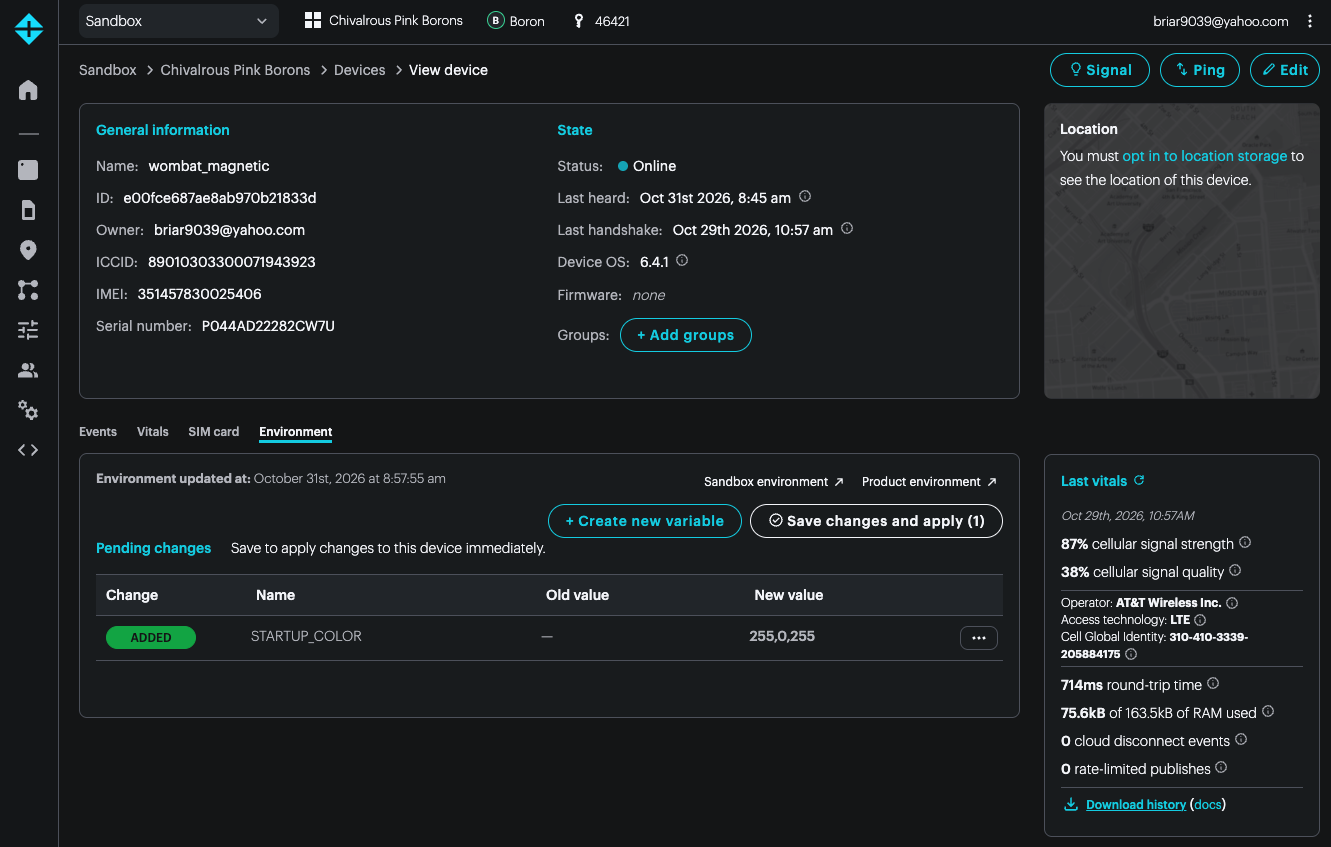
I went back to my product (Chivalrous Pink Borons), the product device list, then my device (wombat_magnetic). In the middle of the window, switched from the Events tab to the Environment tab, and the variable reappeared. Note that it has not been deployed yet; use the Save changes and apply (1) button to deploy the change to the device.
After that, the list will look like this:
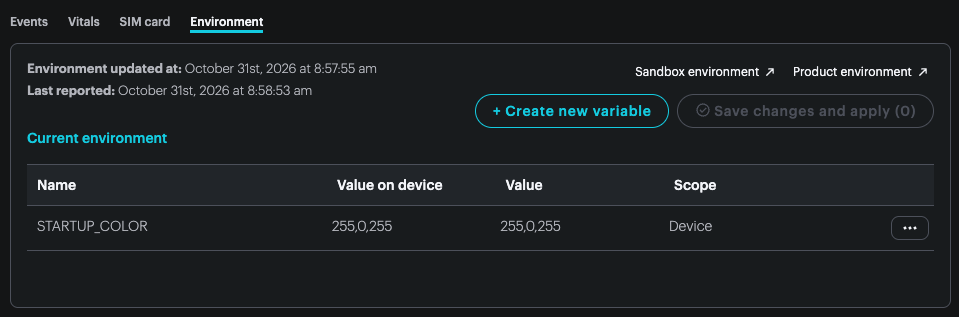
The device should behave like it was getting an OTA update. It's not flashing all of your firmware, just the settings.
After the device boots and reconnects to the cloud it should show solid magenta (red and blue at the same time) for 10 seconds, then resume breathing cyan.
Making startup color set earlier
The STARTUP_COLOR setting was actually available before the cloud connection was established, but it's hard to see what the device is doing if the color change happens right at boot. If you want to prove this to yourself, remove the Particle.connected() && test from the loop() function.
if (!startupColorShown && startupColor.length()) {
Instead of going through blinking green, blinking cyan, fast blinking cyan, the device will probably go from solid magenta directly to breathing cyan.