

 Go to console
 Change theme


 Edit Account
 Logout
Environment is a collection of lightweight, non‑secret, name - value pairs that shape the runtime environment. They are ideal for fast, system level adjustments (endpoints, feature flags, polling intervals) without changing firmware. Available in the cloud and in the firmware, they allow configuration of both Device OS features and user features in a hierarchical manner from organization, the product, with optional per-device overrides.
The feature is available in Device OS 6.4.0 and later.
Variables
Environment variables are name - value pairs.
- Variable names are uppercase letters, underscores and numbers only, and cannot start with a number.
- Variable names beginning with
PARTICLE_are reserved for Particle use. - Maximum variable name length: 128 characters.
- Maximum variable value length: Not limited per variable.
- The total size of all name - value pairs to be delivered to a device cannot exceed 16 Kbytes.
- Maximum number of variables in a scope: 100.
Hierarchical
Organization products
For products in an organization (basic, plus, or enterprise), you can set environment variables at the organization, product, or device level.
Organization ← Product ← Device
If a variable is set in multiple layers, the most specific (rightmost) setting is used.
Sandbox products
For products in the free developer sandbox, you can set environment variables at the sandbox, product, or device level.
Sandbox ← Product ← Device
If a variable is set in multiple layers, the most specific (rightmost) setting is used.
Environment variables are only used for devices in a product. This is also the case for Ledger.
Synchronized
When variables are changed at a given level, the changed are staged for delivery to devices.
Added, removed, or changed variables can be delivered immediately to online devices. For devices that are offline, changes are delivered when the device connects to the cloud.
Each device has a snapshot, which is the combination of organization (or sandbox), product, and per-device environment variables specific to that device.
When an update affects the snapshot for a device and the device is online, the snapshot is immediately sent to the device. The snapshot contains all values (not just the changed ones) and is limited to 16 kB, with the limit enforced on the JSON-encoded key–value pairs.
When a device is comes online, a hash of its current snapshot is sent to the cloud. If the snapshot is not current, then the cloud sends a new snapshot to the device.
Console
Product - Console
You will often configure your environment variables per-product. Once you have opened your organization or sandbox product, go to Configuration then Environment in the left navigation bar.
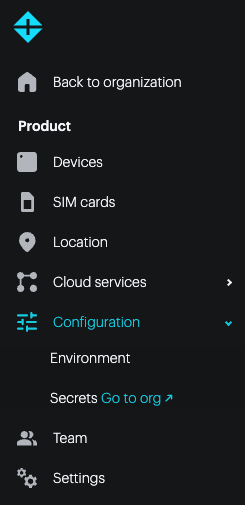
These environment variables are sent to every device in this product.
Organization - Console
If you have access to an organization (basic, plus, or enterprise), you can set environment variables at the organization level in the Organization - Configuration - Environment section.
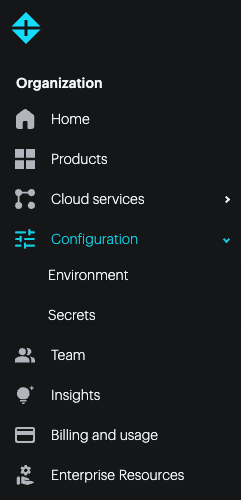
These environment variables are sent to every device in every product in the organization.
Sandbox - Console
For the free developer sandbox, you can set environment variables in Sandbox - Configuration - Environment section.
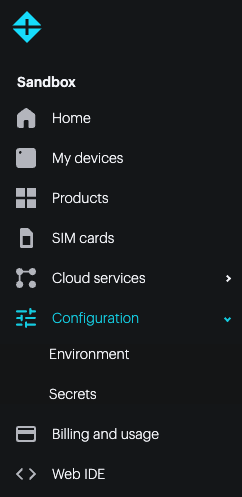
These environment variables are sent to every device in every product owned by this developer account.
Creating an environment variable
When you create your first environment variable in a scope, you will see a screen similar to this:
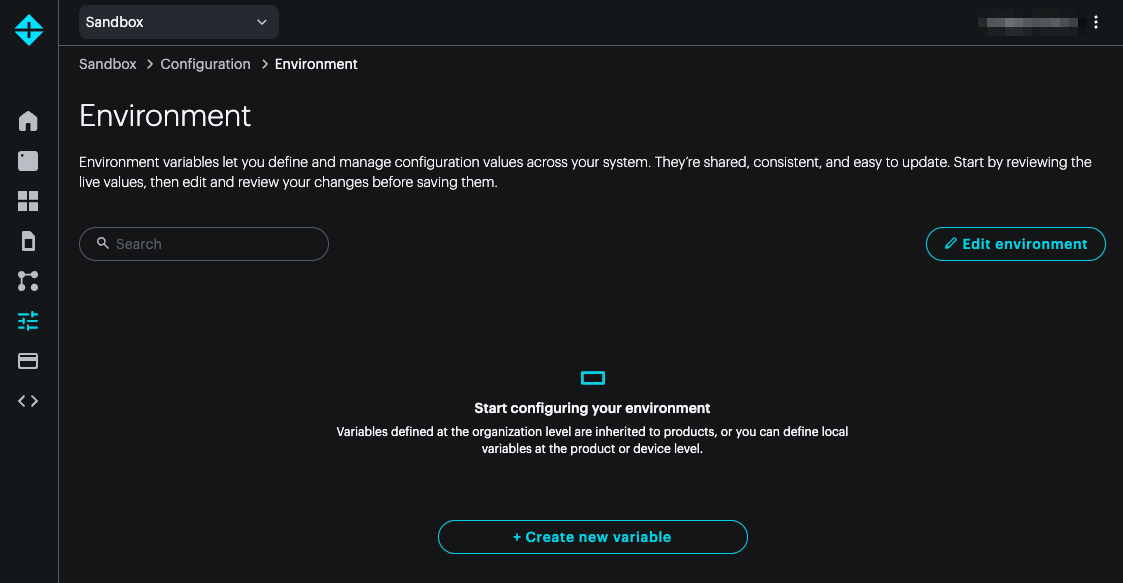
To create an environment variable, fill in this screen:
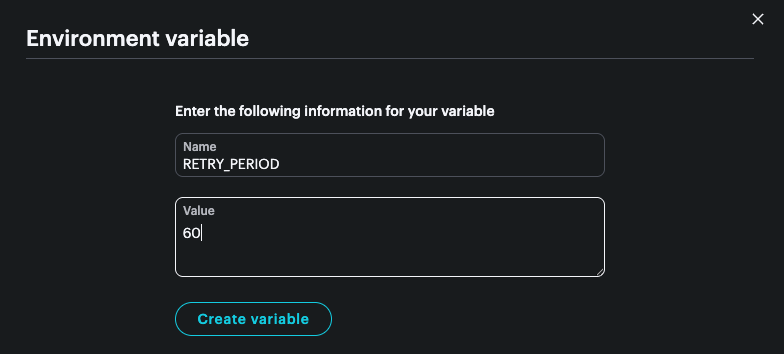
- Variable names are uppercase letters, underscores and numbers only, and cannot start with a number.
- Variable names beginning with
PARTICLE_are reserved for Particle use. - Maximum variable name length: 128 characters.
- Maximum variable value length: Not limited per variable.
- The total size of all name - value pairs to be delivered to a device cannot exceed 16 Kbytes.
- Maximum number of variables in a scope: 100.
For example, you can have 100 organization variables, and also 100 product variables, as long as the combined size does not exceed 16 Kbytes.
Once you've created a variable, you'll see a list of variables that you have created within this scope.
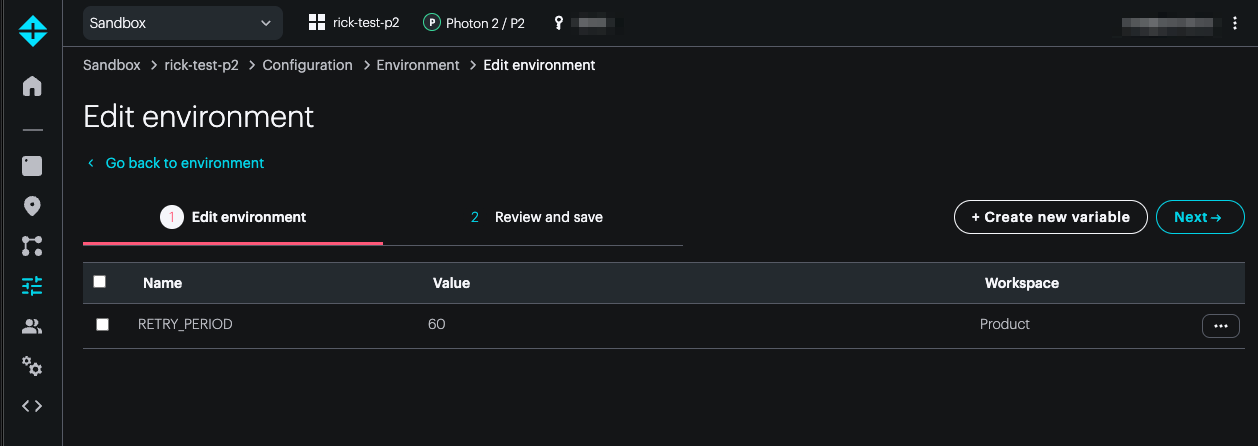
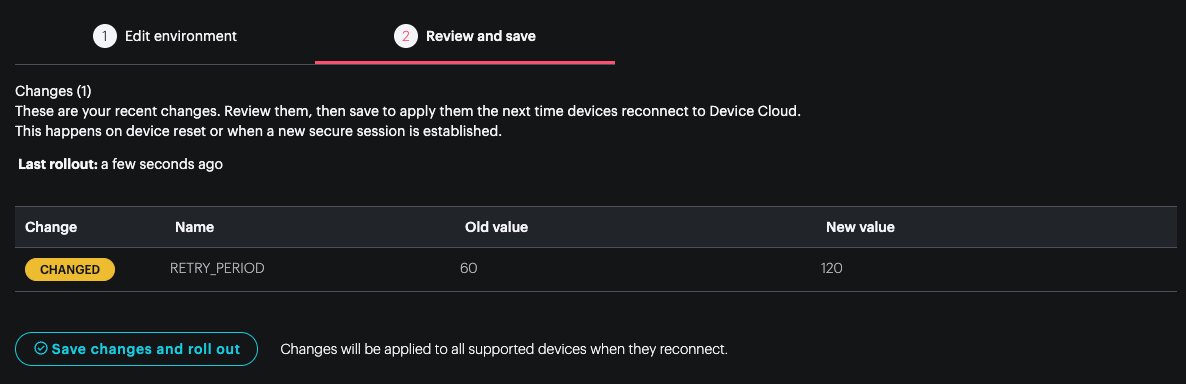
Creating a new variable does not immediately take effect. Once you have made all of the changes you intend to at this scope, click the Next button to roll out the changes.
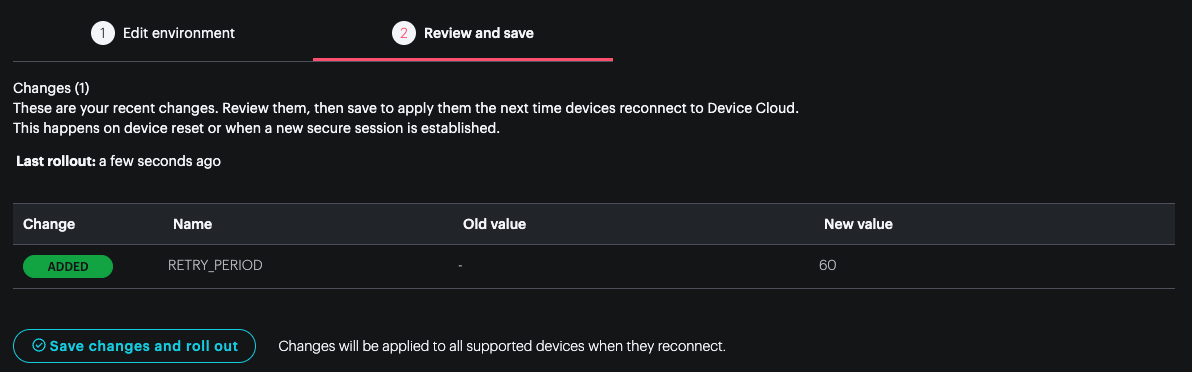
Changes take effect immediately for online devices, and will be sent to offline devices when they next connect to the Particle cloud.
When a device connects to the cloud a hash of the current environment is sent to the cloud and a new version is only sent if the device does not have the current environment snapshot for the device.
Environment variable values
The value is a string that can be used for any data type, however, there are two built-in decoders in Device OS.
Boolean environment variable values
If the string has the value true or false (case-sensitive, lowercase), you can use the bool overload in Device OS.
// EXAMPLE
bool enabled;
if (System.getEnv("ENABLE_DEBUG", enabled) && enabled) {
    // Variable was set and is value and true
}

// PROTOTYPE in System class
static bool getEnv(const char* name, bool& value);
Integer environment variable values
If the string has an valid 32-bit signed integer value, you can use the int overload in Device OS.
// EXAMPLE
int value;
if (System.getEnv("RETRY_PERIOD", value)) {
    // Value was set, do something with it here
}

// PROTOTYPE in System class
static bool getEnv(const char* name, int& value);
Editing an environment variable
When editing the environment, you can update or delete individual variables.
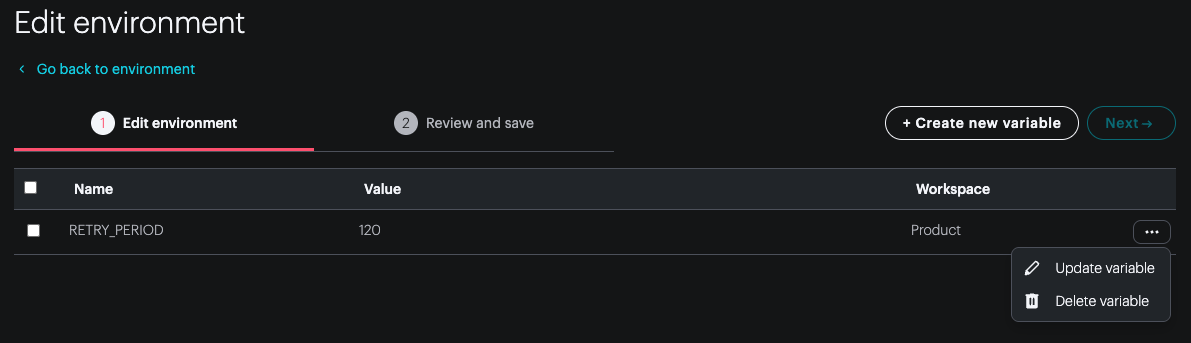
Don't forget to rollout the changes to devices after updating.
Cloud API
Environment variables can be configured using the Cloud API. See the Cloud API Reference.
Device OS
To read environment variables from your code, you use functions like System.getEnv(). These are described in the Device OS API reference.
Device OS 6.4.0 or later is required.
Firmware variables
You can optionally include environment variables with your application using an application bundle, the same technology used for Asset OTA.
This is useful for seeding the default variable values before your firmware connects to the cloud the first time, instead of checking whether the variable exists and embedding the value in your code when you read it.
Using project.properties - Firmware variables
The env key in the project.properties allows bundling of an application binary (.bin) file with an arbitrary JSON file of name - value pairs.
name=MyProject
env=env.json
As is the case with Asset OTA, specifying env will create a .zip file for your application that contains both the binary and its additional data.
Using particle bundle - Firmware variables
Using the Particle CLI particle bundle command with the --env option allows bundling of an application binary (.bin) file with an arbitrary JSON file of name - value pairs.
Device OS environment variables
| Name | Description | Type | Version Added |
|---|---|---|---|
PARTICLE_BLUETOOTH_ENABLE |
Set to false to disable BLE |
bool | 6.4.0 |
PARTICLE_ETHERNET_ENABLE |
Set to false to disable Ethernet |
bool | 6.4.0 |
PARTICLE_WIFI_ENABLE |
Set to false to disable Wi-Fi |
bool | 6.4.0 |
Cellular environment variables
Changing cellular environment variables may adversely affect connectivity. Under normal circumstances you should never need to change these values, and if you do change them, be sure to test changes on a subset of your fleet that you have easy access to in case the changes make the device unable to connect to cellular again.
PARTICLE_CELLULAR_PREFERRED_PLMN
- Available in Device OS 6.4.0 and later
- Gen 3 and Gen 4 devices
- This variable is not available on the B402, B404, BRN402, or BRN404 but is available on the B404X and BRN404X
Sets the preferred list of operators in MCCMNC format. Up to four can be specified. For example:
311480,310410311480
In both cases Verizon (311480) will be the first priority. If you find a device hasn't connected to the preferred operator it may not be available or has missed it in the re-selection process for some reason. A second attempt can be forced by keeping the same first operator, modifying the subsequent values, and rolling out the changes. This will force a disconnect and re-selection of the cellular network if the device is not already on the preferred operator.
If set to an empty string or variable deleted, the modem default is used.
Show compatible SKUs
| SKU | Name | Lifecycle | Modem |
|---|
PARTICLE_CELLULAR_PREFERRED_BANDS
- Available in Device OS 6.4.0 and later
- Gen 3 and Gen 4 devices
Sets preferred bands using a band mask.
The band mask is a bit field of bands. For example:
| Band | Bit | Mask |
|---|---|---|
| B1 | 0 | 1 |
| B2 | 1 | 2 |
| B3 | 2 | 4 |
| B4 | 3 | 8 |
| B5 | 4 | f |
The value to store for the key is a uint128 value represented in hexadecimal of the band mask values added together. Just include the hex digits, do not include a 0x or other characters.
All bands can be enabled by using the value FFFFFFFFFFFFFFFFFFFFFFFFFFFFFFFF.
Show compatible SKUs
| SKU | Name | Lifecycle | Modem |
|---|
PARTICLE_CELLULAR_FORBIDDEN_BANDS
- Available in Device OS 6.4.0 and later
- Gen 3 and Gen 4 devices
Sets a mask of bands to not use. The band mask is the same uint128 hex format as for PARTICLE_CELLULAR_PREFERRED_BANDS.
Show compatible SKUs
| SKU | Name | Lifecycle | Modem |
|---|
You can disable all bands by using the value 0.
Logic
Environment variables are available in Logic via the env member of the FunctionContent.
functionInfo: information about the function that was calledtrigger: information about the time the event was triggeredsecrets: cloud secrets for this product and organizationenv: environment variables for this function
Additionally, one of the following parameters will be populated, based on the type of trigger:
event: information about the event that triggered the Logic Functionscheduled: information about the schedule that triggered the Logic FunctionledgerChange: information about a ledger database change the triggered the Logic Function (future)
// PROTOTYPE
export interface FunctionContext {
    functionInfo: FunctionInfo,
    trigger: TriggerInfo,
    secrets: Record<string, string | null>,
    env: Record<string, string>,
    event?: EventInfo,
    scheduled?: ScheduledInfo,
    ledgerChange?: LedgerChangeInfo
}
For example:
export default function process({ event, env })
{
    console.log('RETRY_PERIOD=' + env.RETRY_PERIOD);
}
Integrations
Integrations including webhooks have access to environment variables using mustache templates.
For example, you could use {{{RETRY_PERIOD}}} from the example above in an integration template in any field including headers, query parameters, URL, etc..
Particle CLI
The Particle CLI particle config env command allows adding, changing, or deleting variables using the command line instead of the console.
You can also retrieve values from a device connected by USB using particle usb env.