


 Go to console

 Change theme


 Edit Account
 Logout
Computer setup
Programming Particle devices is generally done using a computer, laptop or desktop. It can run Windows, Linux, or Mac OS.
It is generally impractical to program a device from a tablet such as the iPad, or from a phone. While a Chromebook can be used for setup and some programming tasks, this guide cannot be used as-is on a Chromebook because Particle Workbench cannot be installed.
Install VSCode
The recommended programming environment for Particle devices is VSCode (Visual Studio Code). It's free and available for Windows, Linux, and Mac.
To install it, follow the instructions in the Workbench quickstart.
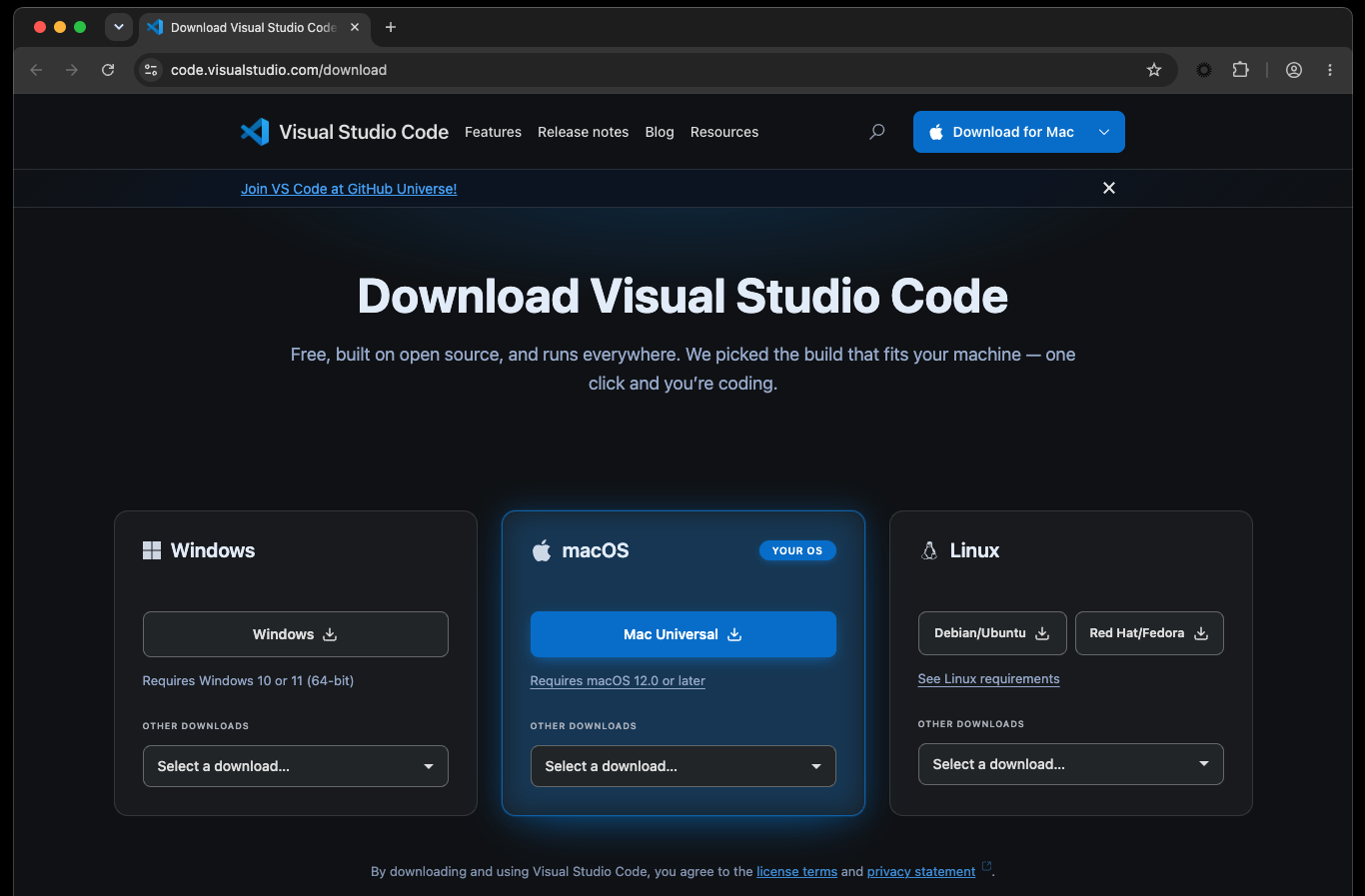
If you already have VSCode installed, you can follow the instructions on that page to install the Particle VSCode Pack from the Visual Studio Marketplace.
Workbench basics
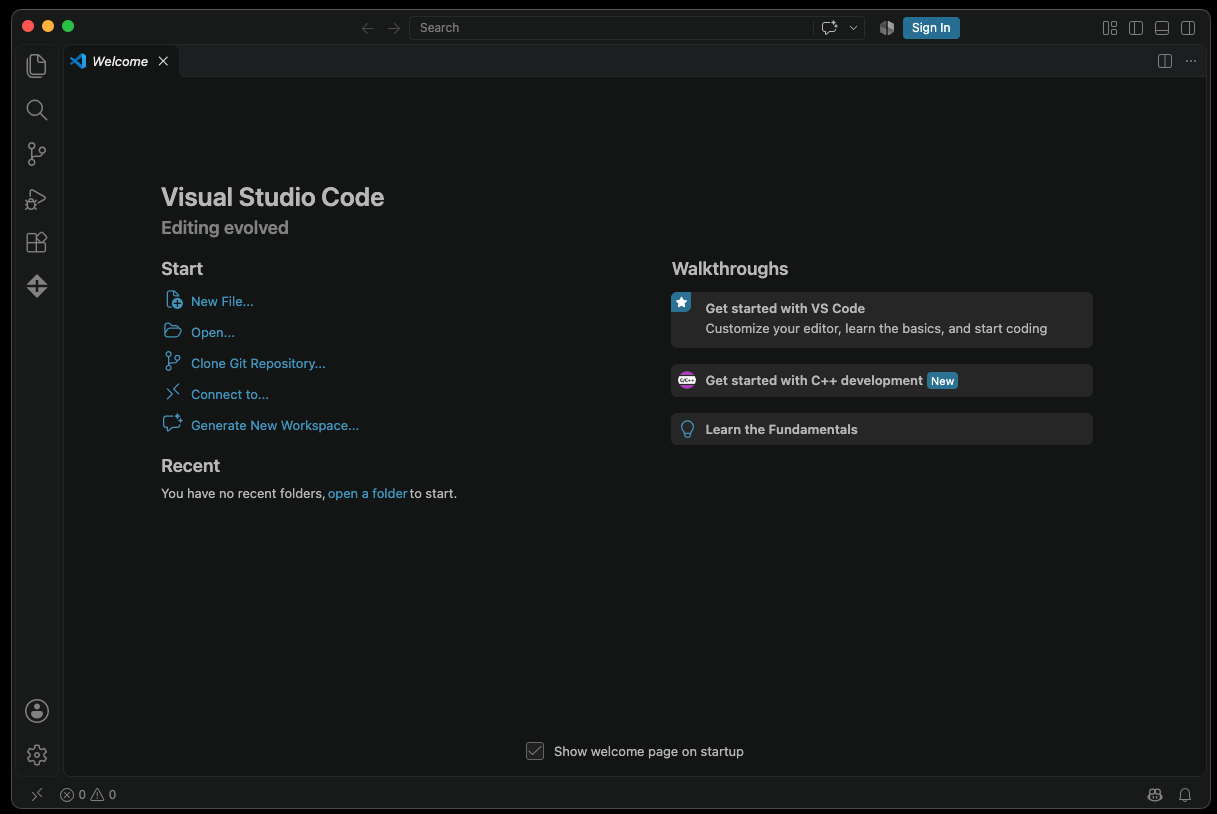
When you open VSCode, you'll generally see the VSCode welcome page.
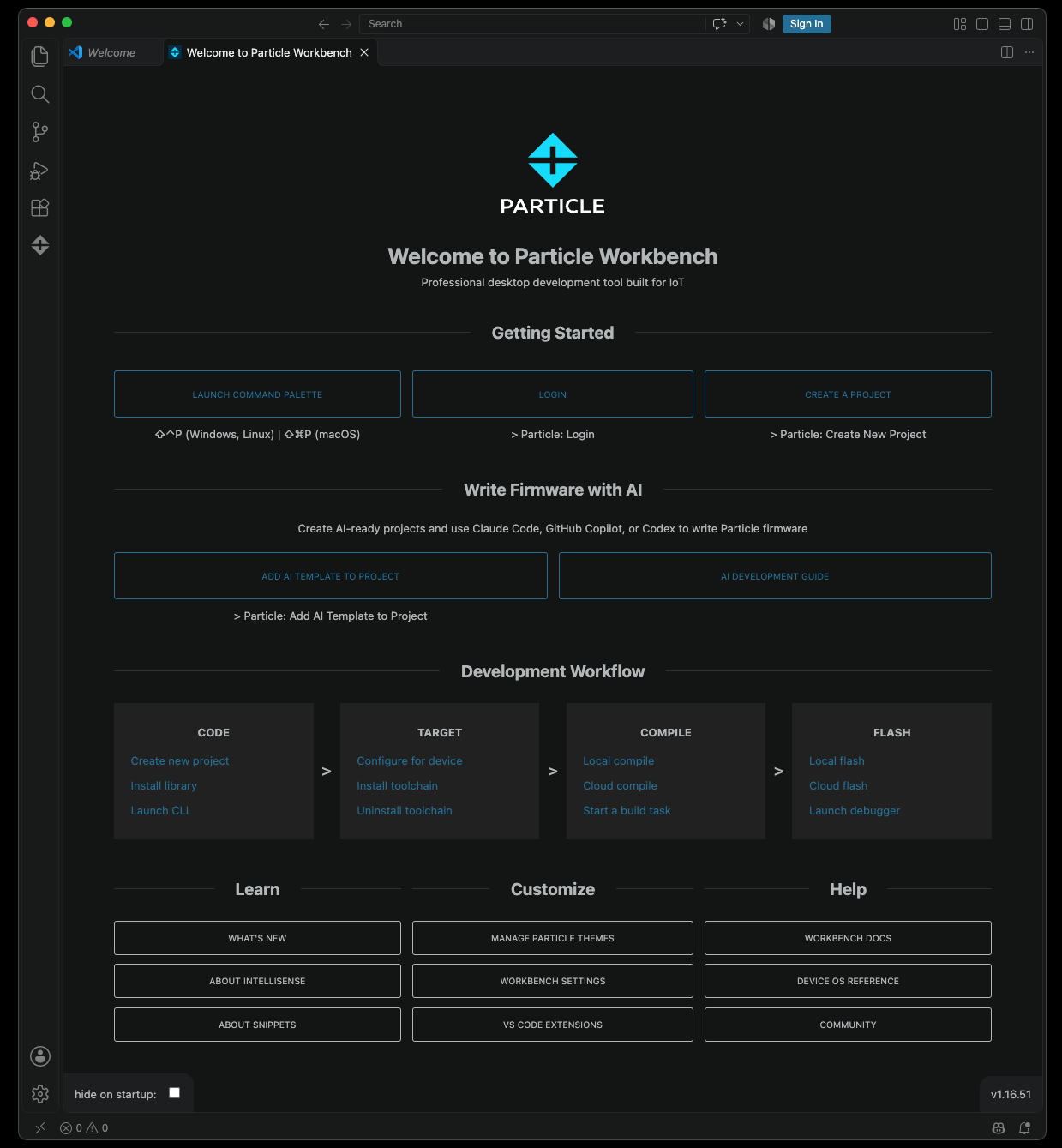
If you click the Particle logo in the left-hand navigation, you'll see the Workbench home page.
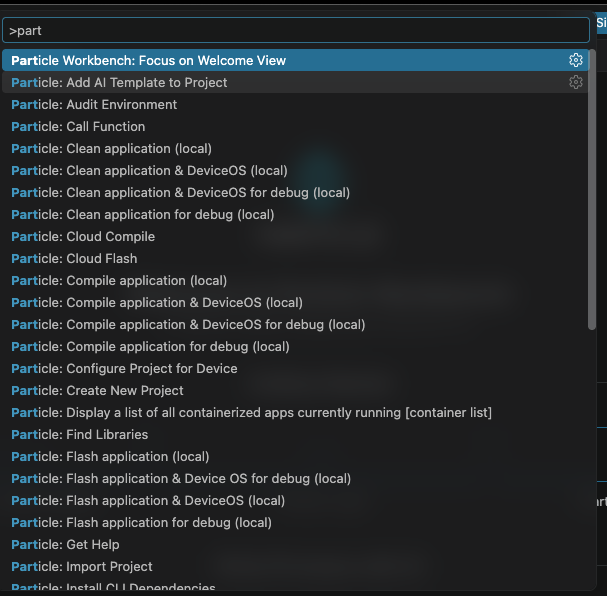
Most features in Particle Workbench (VSCode) are accessed using the Command Palette.
- On Windows and Linux: Ctrl + Shift + P
- On Mac: Command + Shift + P
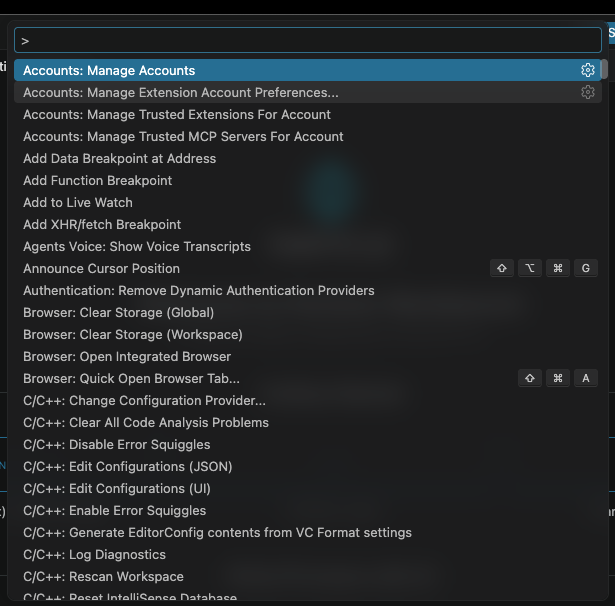
Instead of scrolling the (very long) list commands, you can type a bit of the command name and it will provide some intelligent guesses. It also puts the most recently used options near the top. I've entered part to show the Particle commands:
To learn more about Particle Workbench, see Workbench getting started.
Log in
You should log Workbench into your Particle account if you have not done so already.
Open the command palette (Ctrl + Shift + P or Command + Shift + P) and select Particle: Login.
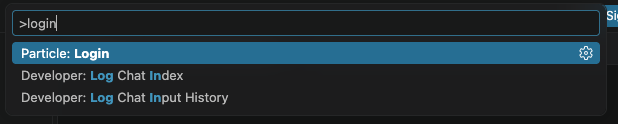
You will generally Login with username unless you have a corporate Particle account using single sign on (SSO). Your username is your Particle account email.
After entering your username and password, you will be prompted for your 6-digit login code (MFA). Enter this from your authenticator app if you have enabled MFA on your Particle account, otherwise, press Esc (escape).

Note: There are a number of these prompts in Workbench where you are asked for a value or press Escape. In these cases, Escape is used to continue without specifying a value, not cancel out of the current operation!
You will generally stay logged in for up to 3 months before you have to log in again. Workbench login really just logs you into the Particle CLI (command line interface), so you can log into either and will be logged into both.
There will be temporary status notifications that appear in the lower right corner of the VSCode window. These go away after a few seconds but it's worthwhile to look in that corner after doing something for additional status information.

Community
This is also a good time to sign up for the Particle community. It's a great place to ask questions about devices and firmware, and be informed of updates to Device OS and the cloud.
Note: The username and password for the community are separate from your Particle account. Using the same email is generally a good idea (it's not shown publicly in the community). The passwords are not synchronized.