


 Go to console

 Change theme


 Edit Account
 Logout
Low-power
In this section, I'll modify the sensors code to use sleep mode to lower power consumption, such as battery-powered use.
Firmware
The code implements:
- Sleep mode to reduce power consumption.
- Environment variables for configuration.
- A finite state machine, a good design practice.
- Typed and extended publish (added in Device OS 6.3.0) for more efficient sending of structured (JSON) data.
- Serial1 debug for sleep debugging
As in the previous section, you can either:
- Particle: Create New Project, create TemperatureSensor3, and paste the contents TemperatureSensor3.cpp file into your file.
- Download the zip file, extract, then Particle: Import Project.
As in the previous section, also do:
- Particle: Configure project for device
- Particle: Flash application (local)
If you have not already done so, if you flash a device directly from Workbench make sure you set the Mark as development device option in the product, otherwise the firmware that you flash will likely be immediately replaced with the product default firmware!
Gen 2 Devices (STM32) (E-Series, Electron, Photon, and P1; does not include E404X):
The code in this section uses extended publish that is only available in Device OS 6.3.0 and later, and cannot be used on Gen 2 devices. While the sensors are compatible with Gen 2 devices, the code would need to be modified to use the older style of publish, used in the CloudButton example.
Explaining the code
This code stores the time until next check on the flash file system. This library makes this easier than making the individual file system calls.
#include "FileHelperRK.h"
This code uses Serial1LogHandler to better debug sleep mode issues. See Using Serial1LogHandler, below for more information.
// SerialLogHandler logHandler(LOG_LEVEL_TRACE); // // This allows for USB serial debug logs
Serial1LogHandler logHandler2(115200, LOG_LEVEL_TRACE); // This allows for UART serial debug logs at 115200 baud
In addition to storing the check time in a file, it's stored as JSON to make it easily extendable in future.
// Configuration data is stored in the flash file system. This includes the next check time.
const char *localConfigPath = "/usr/tempconfig.json";
const char *localConfigLastCheckKey = "lastCheck";
Variant localConfig;
Various configuration settings. You could add environment variables to override some of these settings.
// Various configuration parameters that cannot be configured using environment variables
const std::chrono::milliseconds publishTimeout = 120s; // How long to wait for publish to complete (safety check)
const std::chrono::seconds minimumSleepTime = 5min; // If sleep time is less than this long, don't actually sleep because it won't save power and may cause excessive reconnection
const std::chrono::seconds wakeAdvanceTime = 30s; // How much before check time to wake, to allow time to reconnect to cellular
const std::chrono::milliseconds firmwareUpdateWaitTime = 8s; // How long to wait for a firmware update notification after cloud connecting
And environment variables:
// Environment variables
int temperaturePeriod = 15; // minutes
String temperatureSleepMode = "auto";
This code uses typed and extended publish (added in Device OS 6.3.0) for more efficient sending of structured (JSON) data.
// This version of the code uses Variant and CloudEvent and will only work with Device OS 6.3.0 and later.
CloudEvent event;
It uses a finite state machine, a good design practice. These functions are the states of the state machine.
// Forward declaration for finite state machine states
void statePublishWait();
void statePublishCompletionWait();
void stateCheckFirmwareUpdate();
void stateCheckSleep();
The setup() function does several things:
- Registers a firmware update handler so the code can prevent sleeping during an update
- Initializes the local configuration from the file system
- Reads environment variables
Because the state machine does all of the work, loop() just calls the current state handler function:
void loop()
{
    stateHandler();
}
The statePublishWait() function:
- Waits until connected to the Particle cloud.
- Waits for clock time synchronization.
- Checks to see if it's time to publish.
- Updates the lastCheck time if necessary.
- Publishes the event.
The statePublishCompletionWait() function waits until the publish completes or times out.
The stateCheckFirmwareUpdate() function waits to see if there is a firmware update, and if there is, waits until it completes before allowing sleep.
The stateCheckSleep() function:
- Checks to see if the temperatureSleepMode has enabled sleep mode.
- Checks to see if the amount of time to sleep is long enough. If too short, the device will stay awake and wait instead of going to sleep.
- Enters sleep mode if necessary.
The checkPower() function logs information about the power source, battery state, and battery SoC to the published event.
The checkSensor() function has minor changes from before due to using typed publish. It also uses single-shot mode so the temperature sensor can go into low power mode between readings.
The firmwareUpdateHandler() gets notifications from the system when a firmware update starts and completes, so sleep mode can be prevented during an update.
Environment variables
This code supports two environment variables:
temperaturePeriod is the sleep period in minutes. It's best if 60 is evenly divisible by this number if less than 1 hour.
temperatureSleepMode is how to handle sleep mode:
autoBest guess based on periodbatteryLike auto, but only sleep when powered by batteryneverNever sleep
Using Serial1LogHandler
USB serial debugging is great for troubleshooting, but it can take anywhere from a few seconds to 10 seconds on Windows for it to reconnect. When debugging sleep issues you can lose too many log messages during this period of time. If you are trying to measure sleep current, using USB will affect those results as well.
The solution is to use a USB to UART adapter, sometimes referred to as a FT232, which is the chipset that implements it. I am using one from Sparkfun here:
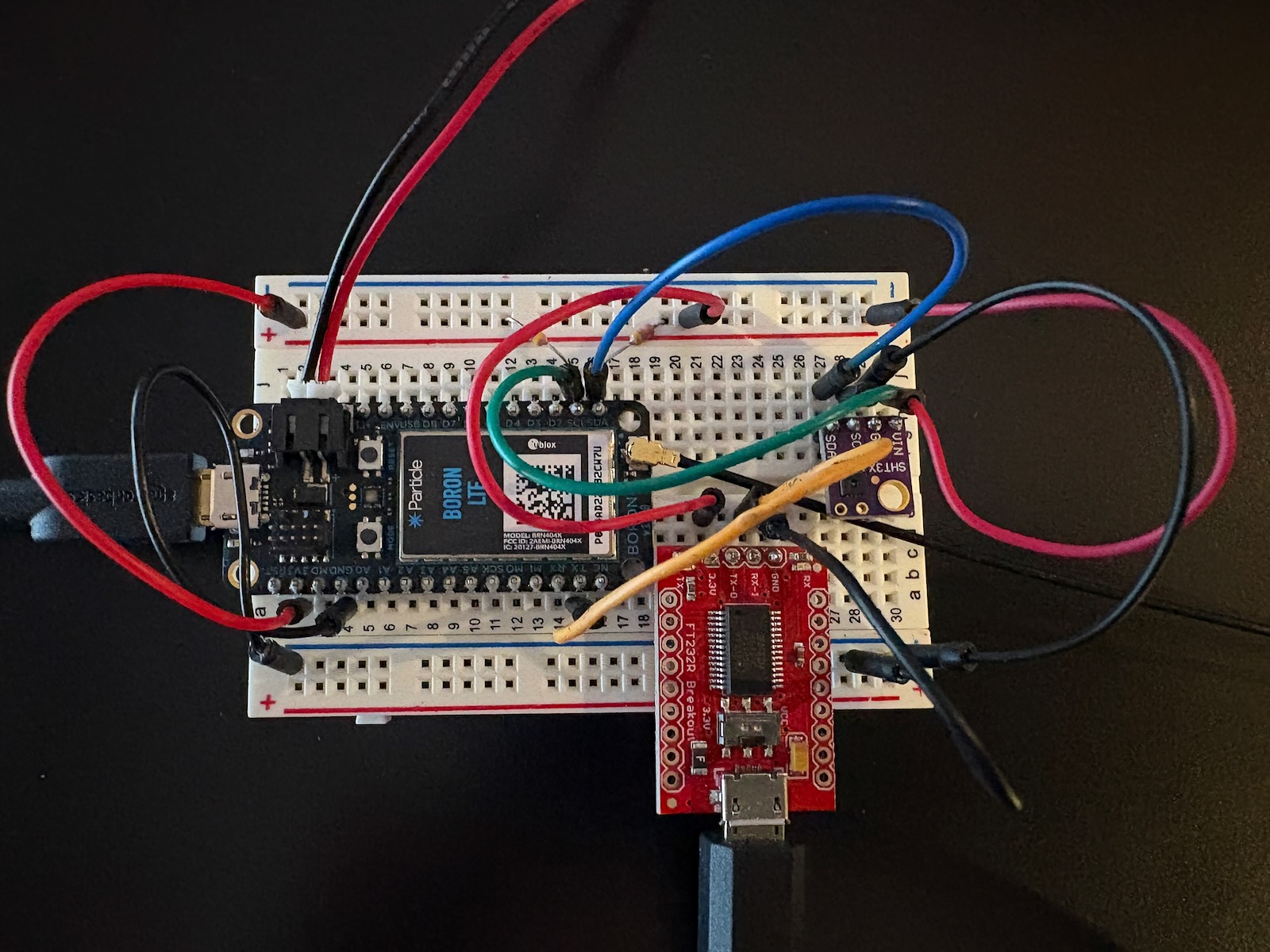
You use Serial1LogHandler instead of SerialLogHandler:
Serial1LogHandler logHandler2(115200, LOG_LEVEL_TRACE); // This allows for UART serial debug logs at 115200 baud
You also use a terminal program like PuTTY or Coolterm on Windows, or the built-in screen command on Linux and Mac instead of using particle serial monitor.
The reason this works is that when the device goes to sleep the USB to serial adapter remains powered by the USB port so the connection does not disconnect. This allows it to always be reading and waiting to receive data from the Particle device's Serial1 UART TX pin.
Using screen
The screen utility on Linux and Mac can be used with UART serial debugging. The commands are not always intuitive, but here's a short list of useful commands:
List USB serial devices so you can find the name:
ls /dev/tty.usb*
Connect at 115200 baud:
screen /dev/tty.usbserial-AH03FH1E 115200
Exit (detach) - allows you to resume later:
Ctrl+A then press d (detach)
Resume detached session:
screen -r
Exit (kill) - disconnects from the port:
Ctrl+A then press k (kill)
View scrollback:
Ctrl-A then press ESC
Exit viewing scrollback:
ESC
Make scrollback bigger:
Ctrl+A then press : then enter scrollback 10000 then press Return
Logs
This is a typical log for publishing values:
0001537183 [app] INFO: checking now lastCheck 1793727000 Tue Nov  3 17:30:00 2026, nextCheck 1793727900 Tue Nov  3 17:30:00 2026, temperaturePeriod 15
0001537204 [app] INFO: lastCheck updated lastCheck to 1793727900 Tue Nov  3 17:45:00 2026
0001537291 [comm.coap] TRACE: Sending CoAP message
0001537291 [comm.coap] TRACE: CON POST /E/temperatureSensorTest size=141 token=b9 id=205
0001537304 [app] INFO: published {"battery":"Charged","humid":33.0282,"lastCheck":1793727900,"power":"USB Host","soc":73.7344,"temp":26.6022,"temperaturePeriod":15}
0001537348 [comm.coap] TRACE: Received CoAP message
0001537349 [comm.coap] TRACE: ACK 0.00  size=4 token= id=204
0001537432 [comm.coap] TRACE: Received CoAP message
0001537434 [comm.coap] TRACE: ACK 0.00  size=5 token=b9 id=205
0001537440 [app] INFO: publish succeeded
0001538361 [comm.coap] TRACE: Received CoAP message
0001538362 [comm.coap] TRACE: CON POST /E/particle/device/updates/pending size=47 token=01 id=50173
0001538372 [comm.coap] TRACE: Sending CoAP message
0001538377 [comm.coap] TRACE: ACK 0.00  size=4 token= id=50173
0001545182 [app] INFO: going to sleep for 856 seconds, wake at Tue Nov  3 17:59:30 2026
0001545185 [system.sleep] TRACE: Entering system_sleep_ext()
Measuring power consumption
If you are building a battery powered device you may want to get appropriate equipment for measuring current. Particle typically uses the Otii Arc for this purpose, but there are lower-priced alternatives as well.
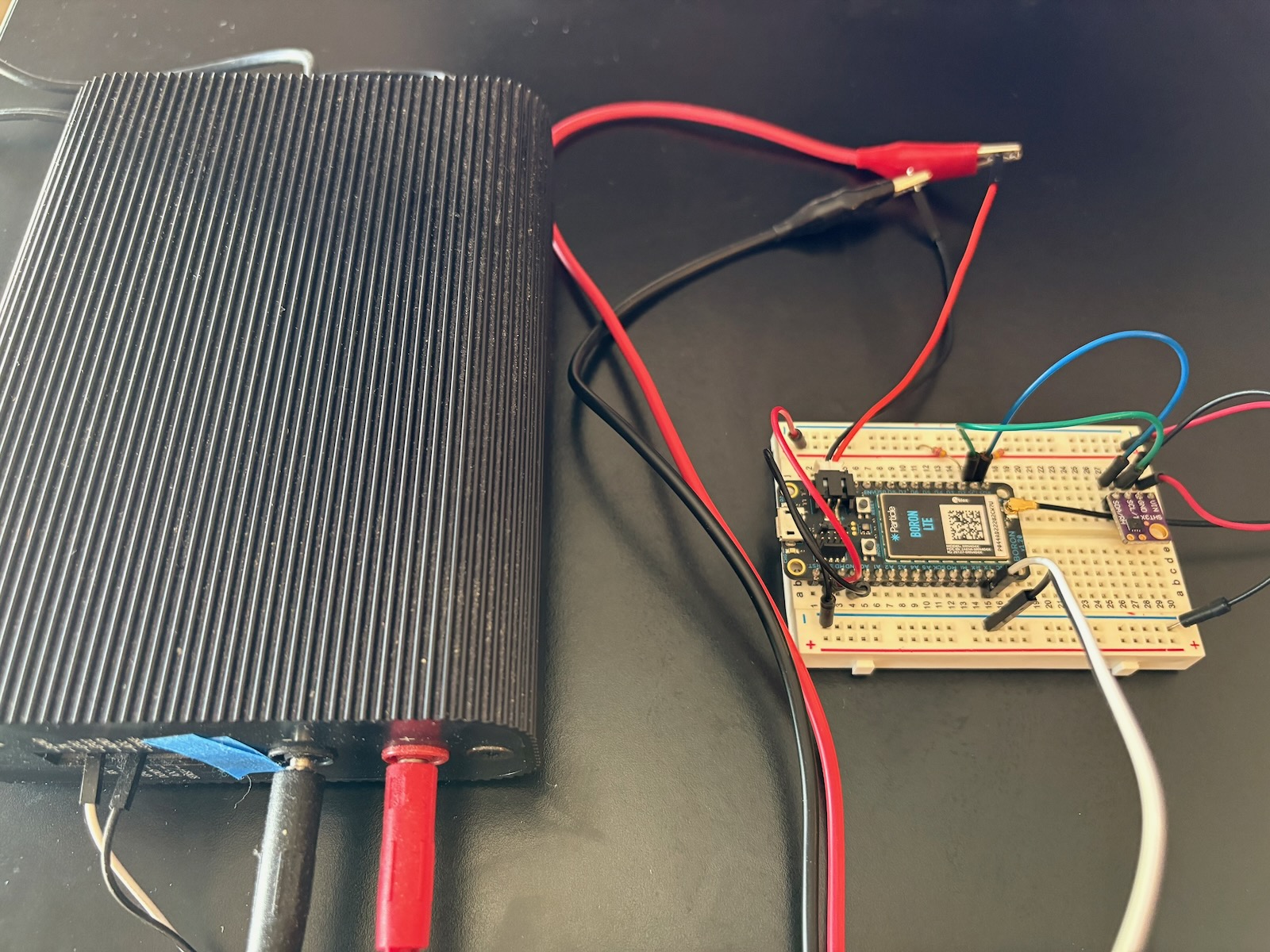
In addition to accurately measuring current that can range from 100 microamps to 2 amps, depending on the device, it can also monitor the UART serial debug log, and correlate the logs to the power consumption.
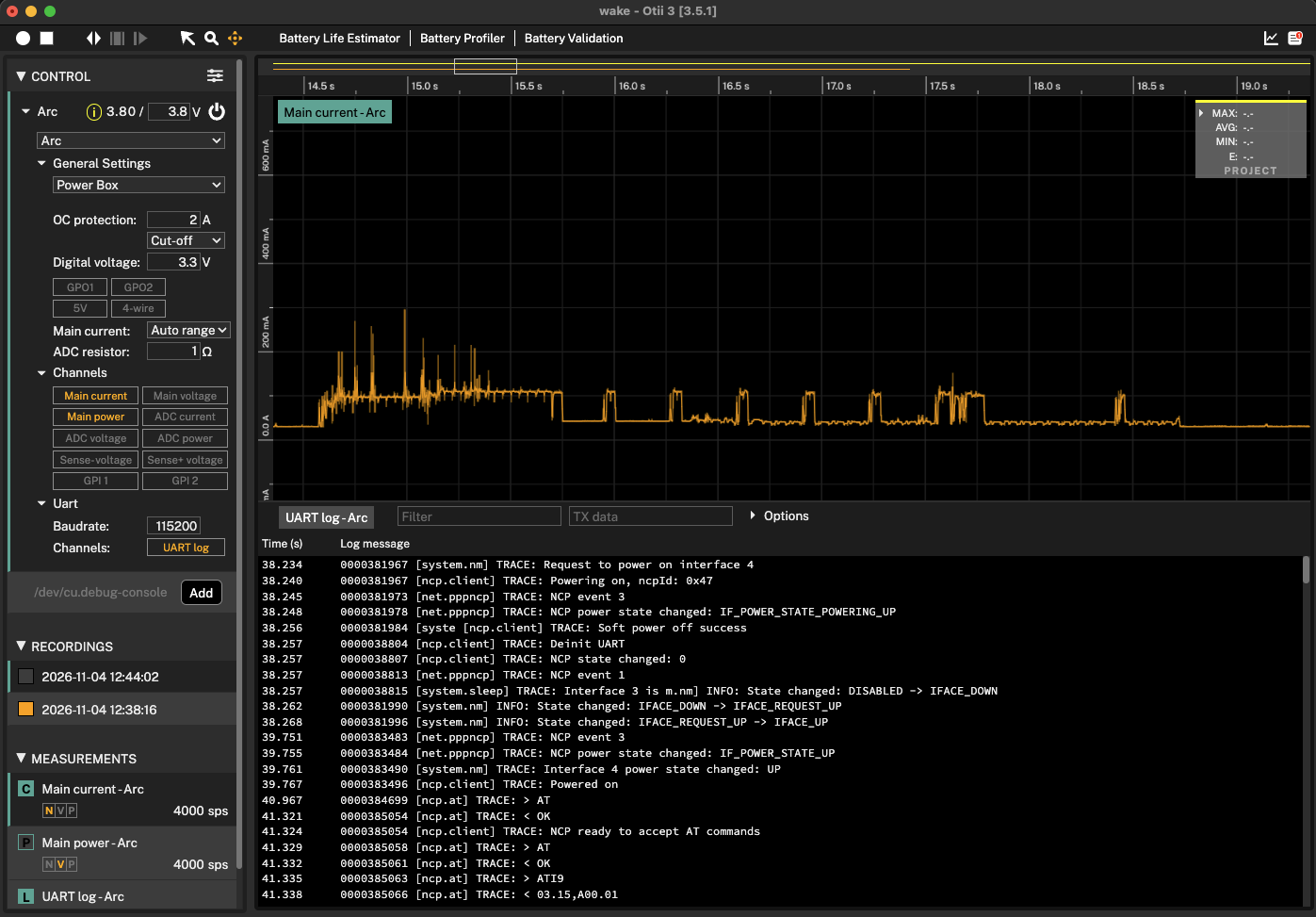
For more information, see power measurement.
Next steps
- More sleep examples are available in the docs